
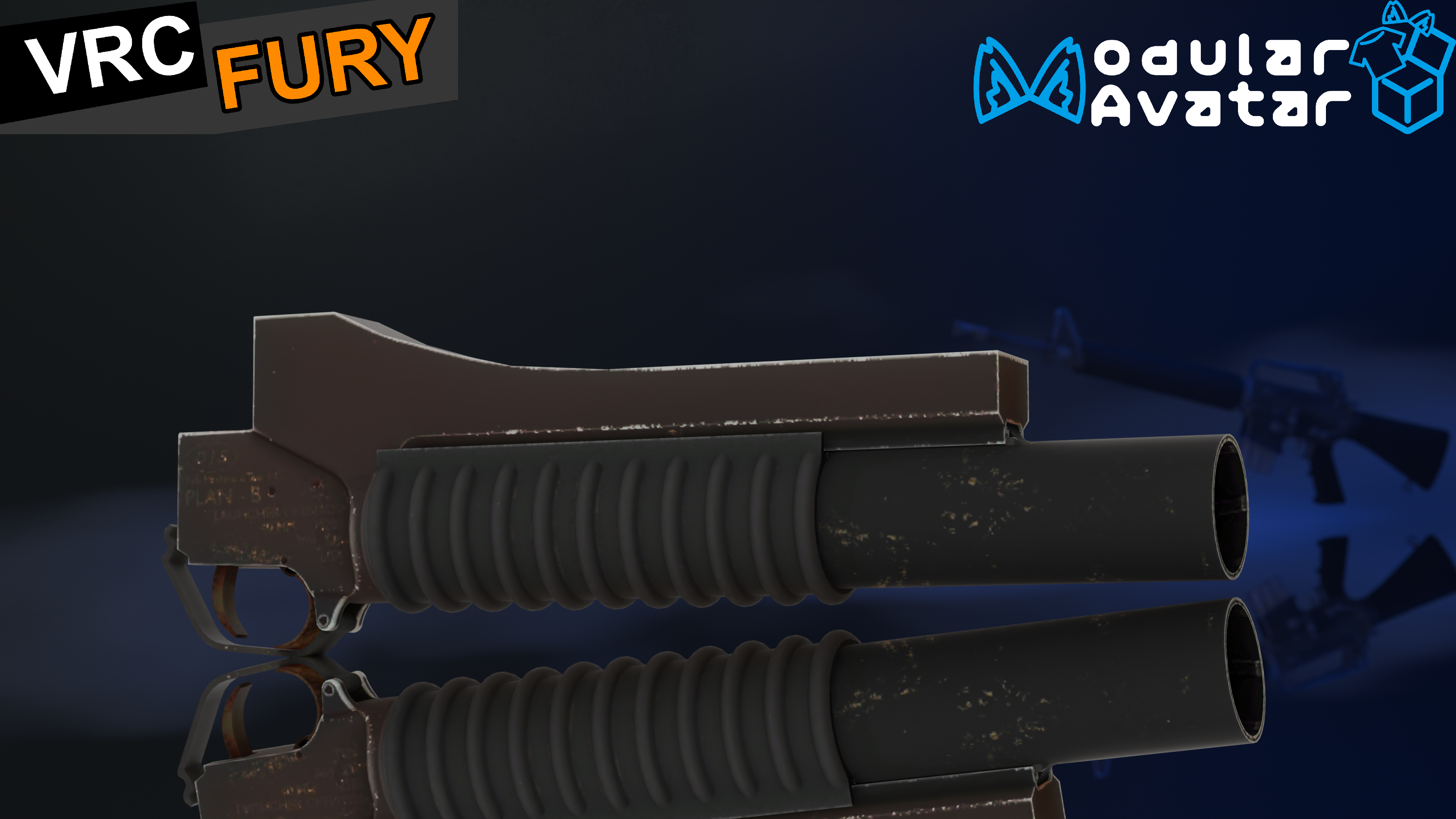
(VRChat) M203 Underbarrel
Product Description
IMPORTANT: The installation process is different than everything else on my store. Pay close attention to the video and be sure to check the Time Stamps to ensure you know what you are doing. Or read the instructions below and/or in the prefab folders.
Expect some latency, so the Grenade may not be in the exact place. This is due to culling. This may occur more often because the Grenade has gravity.
A Grenade Launcher that can be installed with VRCFury or Modular.
The M203 has an Ammo System that fires 1 Round before you need to reload.
A Chance of ricocheting the Grenade, depending on the angle.
The main feature is that the Grenade Launcher will explode on impact or on its own after 1.5 seconds.
A Screenspace effect when shot by the Grenade. A Red Ring around the Corner of the Screen.
Ability to Holster
How to install:
-------------------------------------------------------------------------------------------
VRFury Instructions
Step 1: Unpack "M203 Parent" in Hierarchy and Drag any weapon's object onto the Target on "M203 Parent's" Component for "Armature Link"
Step 2: After that you will go onto the "Full Controller" and Click the small arrow on "Advanced Options" and you will copy "M203Holstered" under "Global Parameters"
Step 3: You will go to your weapon of choice and go under "Advanced Options" on that gun of your choice and press the + button on "Global Parameters" and paste "M203Holstered" onto there.
Step 4: You will then locate the FX from your weapon of choice and go onto the exact top layer or at least the layer that contains the holstering mechanic.
Step 5: After that you will add a "Parameter Driver" on each Animation by clicking the "Add Behavior" button on the side.
Step 6: On "VRC Avatar Parameter Driver" you will click Add then paste "M203Holstered" in the Destination box.
Step 7: To ensure it works properly, add the number 1 on the Value for the "Holster Animation" so that way when you holster your weapon, the grenade launcher doesn't go off. The rest will need the Value of 0.
Step 8: Enjoy
-------------------------------------------------------------------------------------------
Modular Avatar Instructions
Step 1: Unpack "M203 Parent" in Hierarchy and Drag any weapon's object onto the Target on "M203 Parent's" Component for "MA Bone Proxy"
Step 2: You will then locate the FX from your weapon of choice and go onto the exact top layer or at least the layer that contains the holstering mechanic.
Step 3: After that you will add a "Parameter Driver" on each Animation by clicking the "Add Behavior" button on the side.
Step 4: On "VRC Avatar Parameter Driver" you will click Add then paste "M203Holstered" in the Destination box.
Step 5: To ensure it works properly, add the number 1 on the Value for the "Holster Animation" so that way when you holster your weapon, the grenade launcher doesn't go off. The rest will need the Value of 0.|
Step 6: Enjoy
-------------------------------------------------------------------------------------------
How to use:
Radial Wheel, Enable M203
Gesture Left Fist to Shoot.
Radial Wheel to Reload.
Terms of Service
Personal Use Only – You may modify this product for personal use, but commercial use, redistribution, and sharing are strictly prohibited. By purchasing, you agree to these terms. Copyright © 2026 Burst. All Rights Reserved.