
Product Description
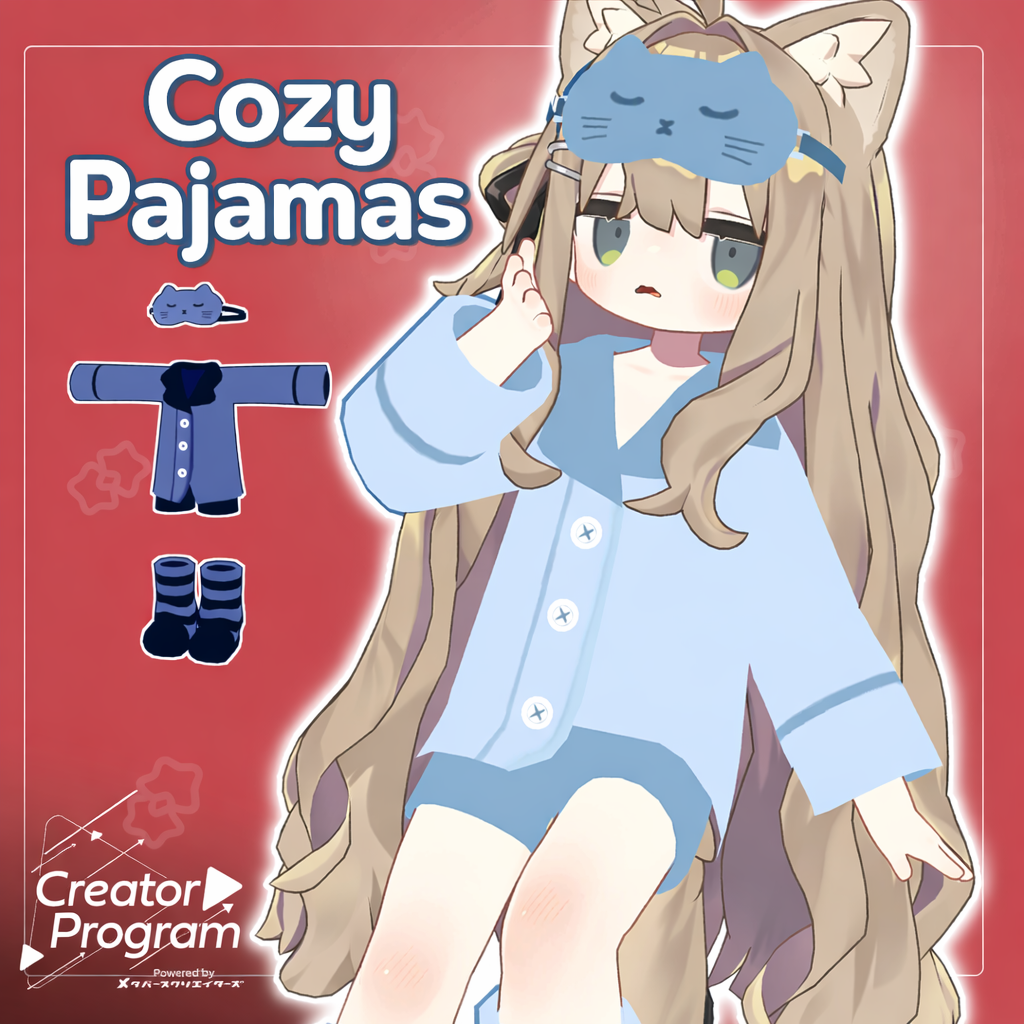
◆ Cozy Pajamas ◆
Creator: Sarayashiki Editing Office
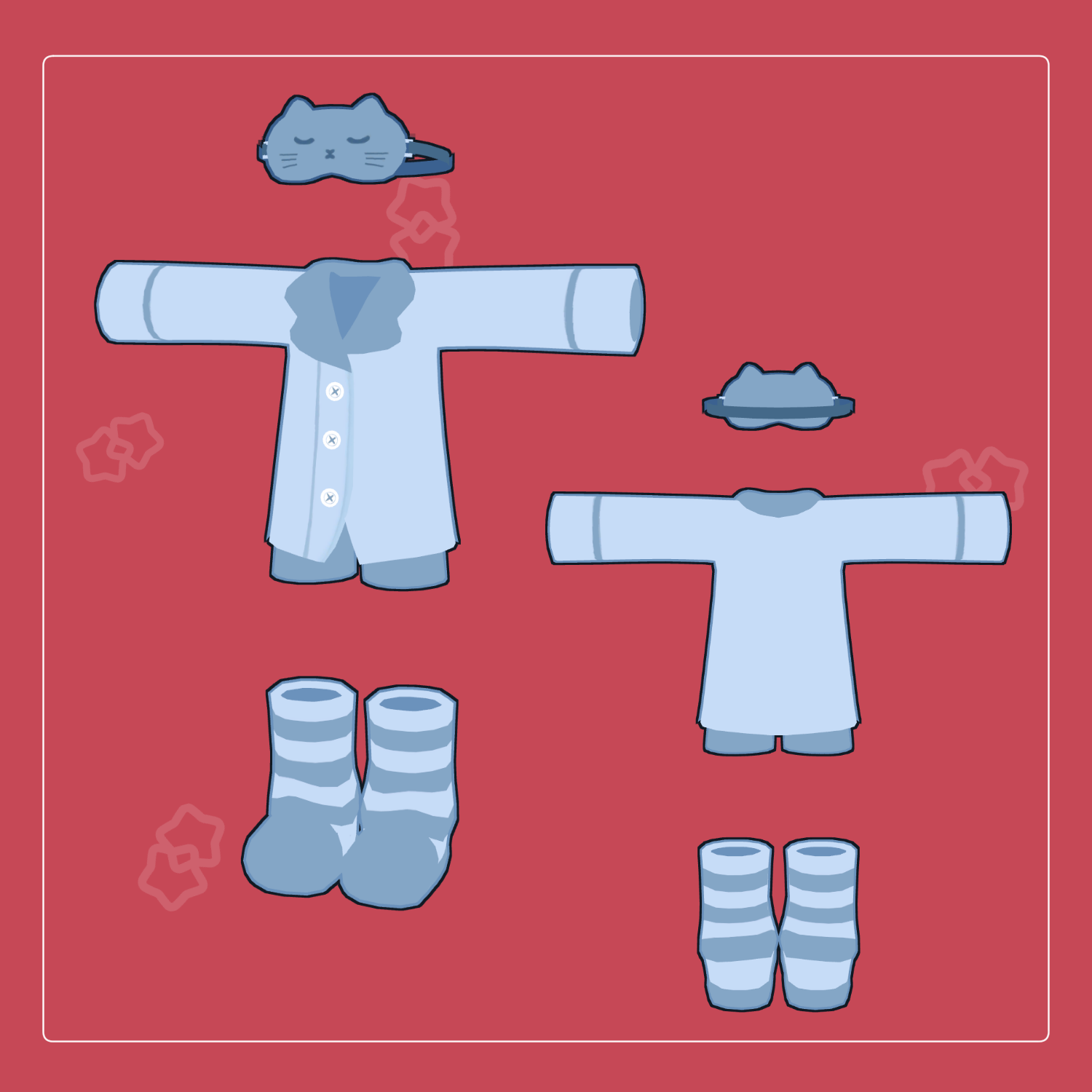
A loose-fitting pajama set with a sleep mask included.
⚠️ Important Notes
This product is a clothing model for avatars. The avatar base model is not included.
Due to the nature of downloadable products, refunds and returns are not available. Please review the product description and terms of use before purchasing.
◆ Item Overview
● Contents
Unitypackage
FBX
Textures
PSD files for modification
ReadMe.txt
● Required Shader
liltoon
https://lilxyzw.booth.pm/items/3087170
● Required Asset
Modular Avatar
https://modular-avatar.nadena.dev/ja/docs/intro
● Model Data
Total Polygon Count: 5,563
Eye Mask: 432
Tops: 2,287
Bottoms: 1,012
Leg Warmers: 1,076
Slippers: 756
Mesh Count: 5
Material Count: 2
PB Components: 0
Import Folder
Assets > MetaverseCreators_CP > sarayashiki > yuttaripajama
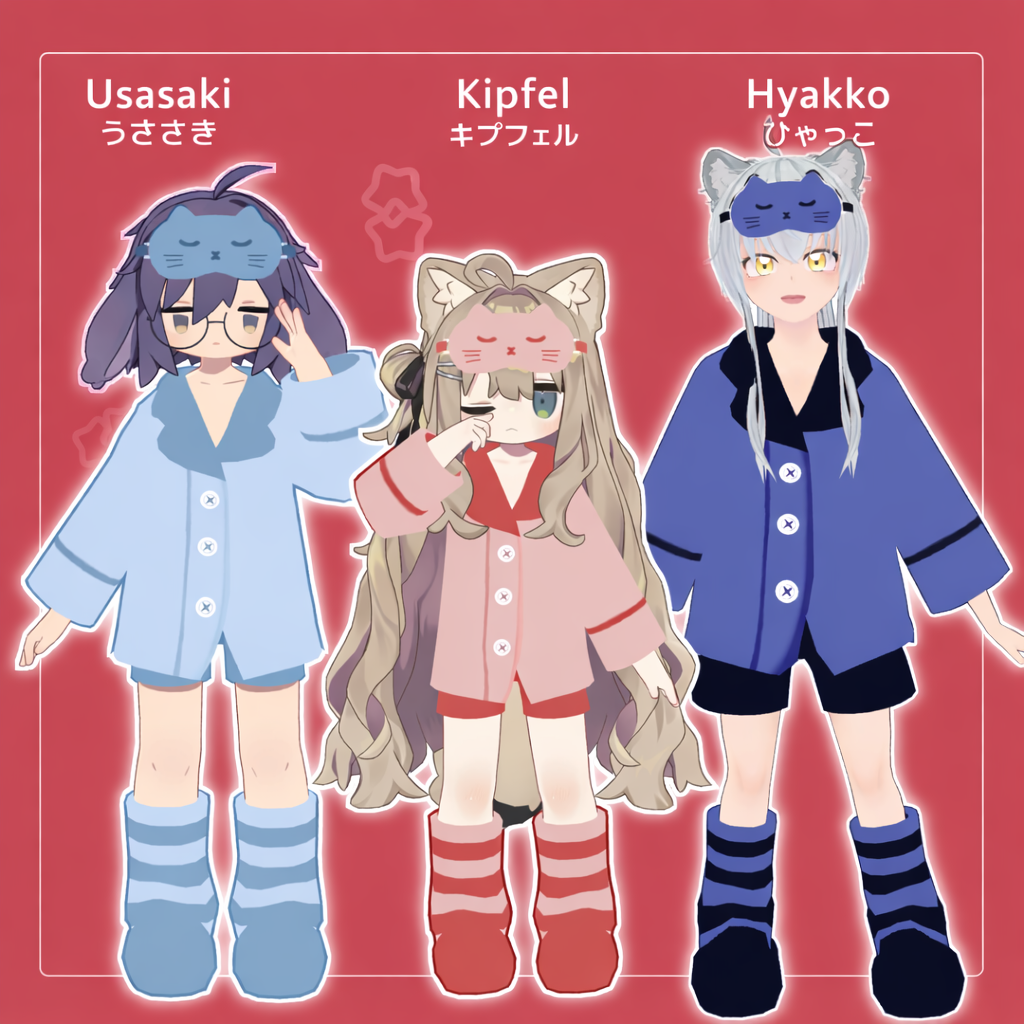
◆ Compatible Avatars
Kipfel (Original 3D Model)
https://booth.pm/ja/items/5813187
Usasaki (Original 3D Model)
https://booth.pm/ja/items/3550881
“Hyakko” - by Niyami
https://booth.pm/ja/items/6328134
⚠️ When equipping the outfit, shapekeys are used to hide the avatar body (making it thinner to prevent clipping).
◆ Installation Instructions
Set up the latest VRC SDK in VCC.
Install required assets (liltoon, Modular Avatar) via VCC.
Import the latest version of the avatar package.
Import this product’s package.
Drag and drop the avatar (or dressing/modification prefab) into the Scene Hierarchy.
Disable unnecessary clothing (default outfits, underwear, etc.) or set them to Editor Only if needed.
Drag and drop “OutfitName_AvatarName.Prefab” directly under the avatar.
Upload the avatar via the VRC SDK.
⚠️ This outfit uses Modular Avatar’s “MA Shape Changer.”
When the outfit is placed directly under the avatar, the avatar’s body shapekeys are automatically enabled to make the body slimmer or hide parts of the mesh that would clip with the outfit.
If you do not need the configured MA Shape Changer, you may remove it as desired.
⚠️ If parts of the avatar body appear unintentionally thin after dressing, reset the corresponding body shapekey to 0 and confirm that the body mesh is visible.
◆ Color Customization
Replace the materials with the color variations located in:
Common > Material
You can also customize colors using the included PSD or CLIP files.
◆ Terms of Use
https://drive.google.com/drive/folders/1qRMXoIxM1ZgacBPfwOigQRtXP1vCbNMn?usp=sharing
Please also follow the terms of use of the base avatar.
◆ Production Environment
Modeling: Blender Ver4.2
Texturing: CLIP STUDIO PAINT
Setup: Unity Ver2022.3.22f1
VRChat SDK - Avatars Ver3.10.1 (VCC)
liltoon 2.3.2
ModularAvatar 1.12.1
◆ Credits
Creator: Sarayashiki
https://sarayashiki.booth.pm/
Support / Inquiries
https://discord.gg/bmw3PWE37M