
Lily Suit - VRChat Men's Clothing / CP47
Tags
Product Description
◆ Lily Suit ◆
Creator: korarako
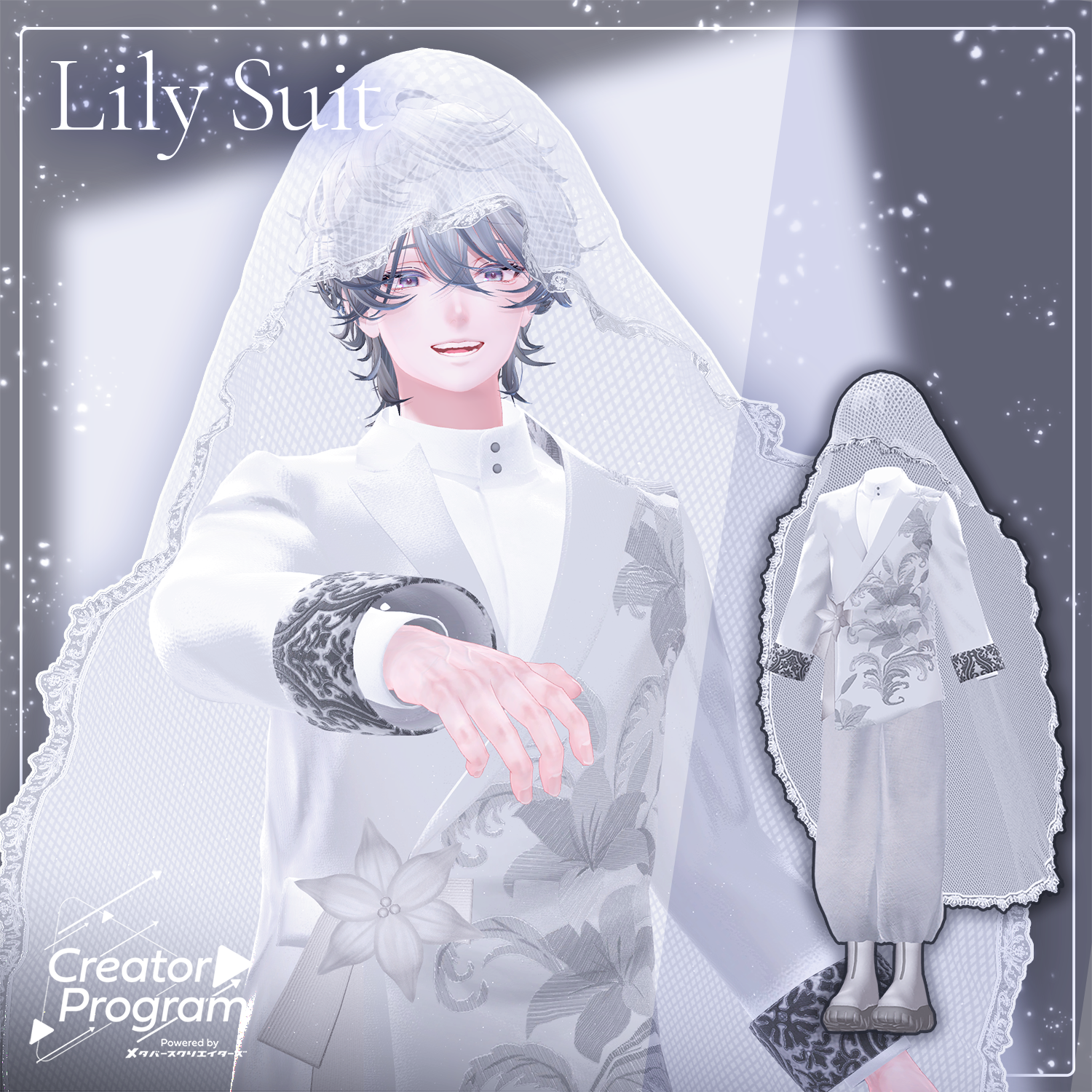
Stitching a pure heart onto the inside of the veil, so it will never be forgotten.
This is a casual yet dressy lily-themed suit and veil set.
Perfect for everyday use, special occasions, or even bridal wear.
Note: This product is a clothing model designed for avatars. The avatar body data itself is not included.
Due to the nature of digital download products, returns and refunds are not possible. Please read, understand, and agree to the product description and terms of use before purchasing.
◆ Item Overview
● Contents
LilySuit_[AvatarName].Unitypackage
ReadMe.txt (Main text)
Shaders Used:
liltoon: https://lilxyzw.booth.pm/items/3087170
Required Assets:
Modular Avatar: https://modular-avatar.nadena.dev/ja/docs/intro
● Model Data
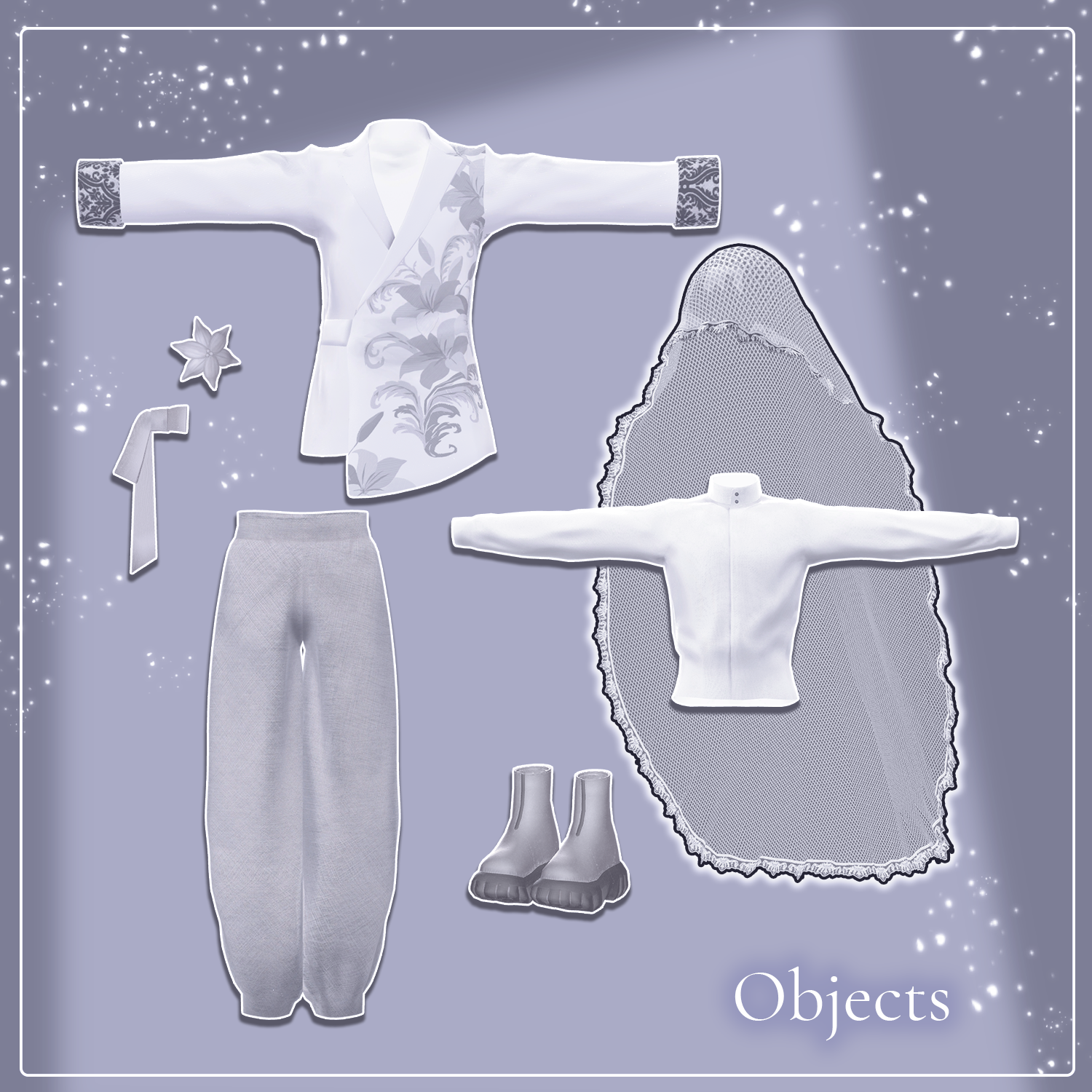
Total Polygon Count: Approx. 26,076 to 26,100 polygons (Based on the Hanka body; details vary slightly depending on the avatar)
Jacket: 6,928 polygons
Shirt: 4,797 polygons
Bottom: 5,402 polygons
Veil: 3,319 polygons
Ribbon: 234 polygons
Shoes: 4,616 polygons
Lily: 780 polygons
Mesh Count: 7
Material Count: 7
PhysBone Components: 5
Folder Path Upon Import:
Assets > MetaverseCreators_CP > KORARAKO'sShop > LilySuit
The MA_prefab folder contains prefabs that are pre-configured with Modular Avatar. The Non_MA_prefab folder contains prefabs with only PhysBones (jiggle physics) configured. Please choose the appropriate folder based on your needs, such as if you encounter issues using MA or if you are fitting this to an unsupported avatar.
◆ Supported Avatars
[Original 3D Model] 斑霞 -Hanka-: https://booth.pm/ja/items/6970249
[Original 3D Model] 狛乃 -Komano-: https://booth.pm/ja/items/5260363
[Kuuta -くうた-] Original 3D Model #Kuuta3D: https://booth.pm/ja/items/4897493
Original 3D Model "凛仁 (Licht)" #凛仁3D #Licht3D: https://metacreatorstyo.booth.pm/items/7430852
Original 3D Model "雫峰 -Shizune-" #雫峰3D #Shizune3D (PlusHead Body): https://metacreatorstyo.booth.pm/items/7684873
When equipping the outfit, you will use shape keys that hide parts of the avatar's base body (making the body thin like a stick).
◆ About Clothing Shape Keys
There are no custom shape keys specific to individual avatars.
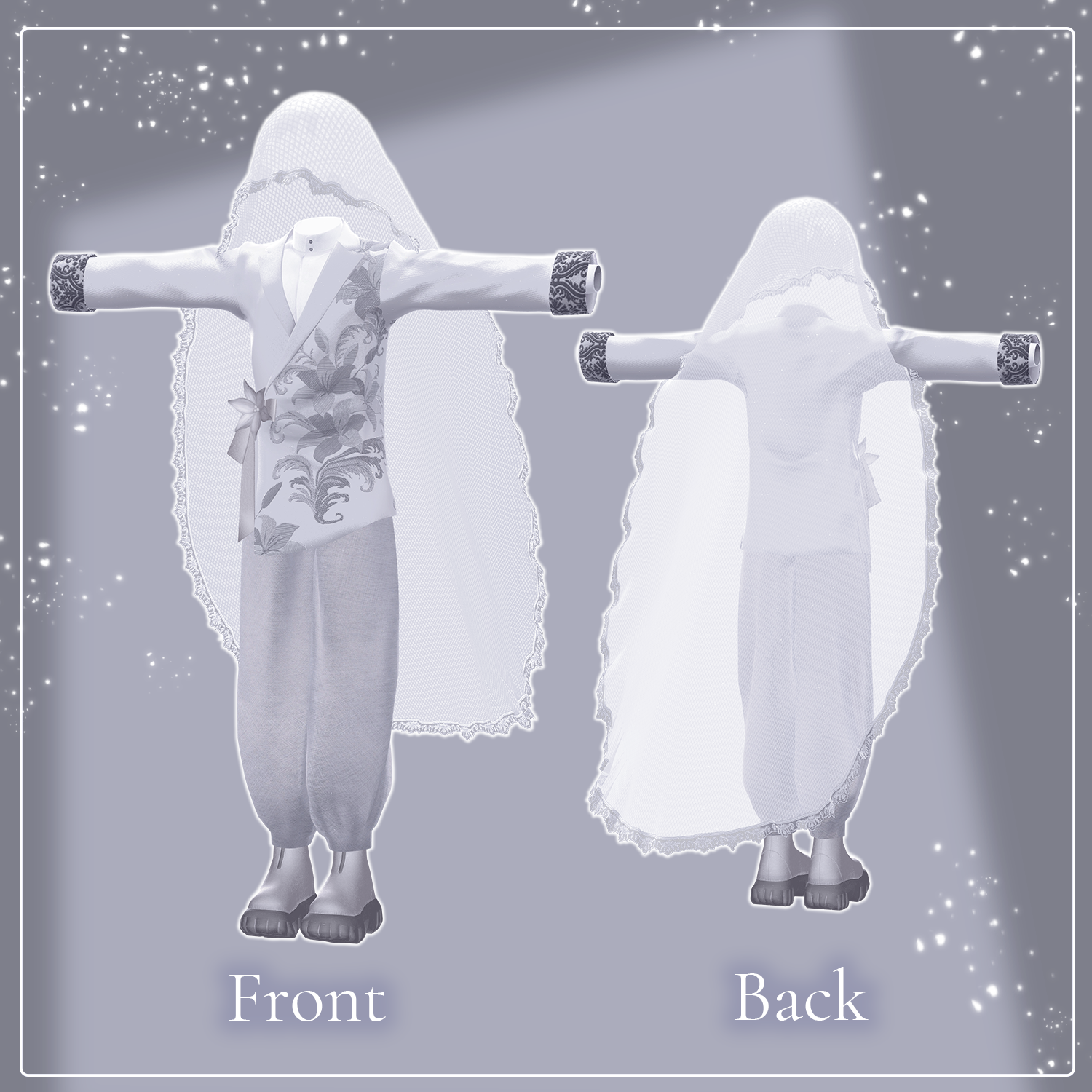
The veil features multiple adjustment shape keys. Please adjust them to match your avatar's hairstyle.
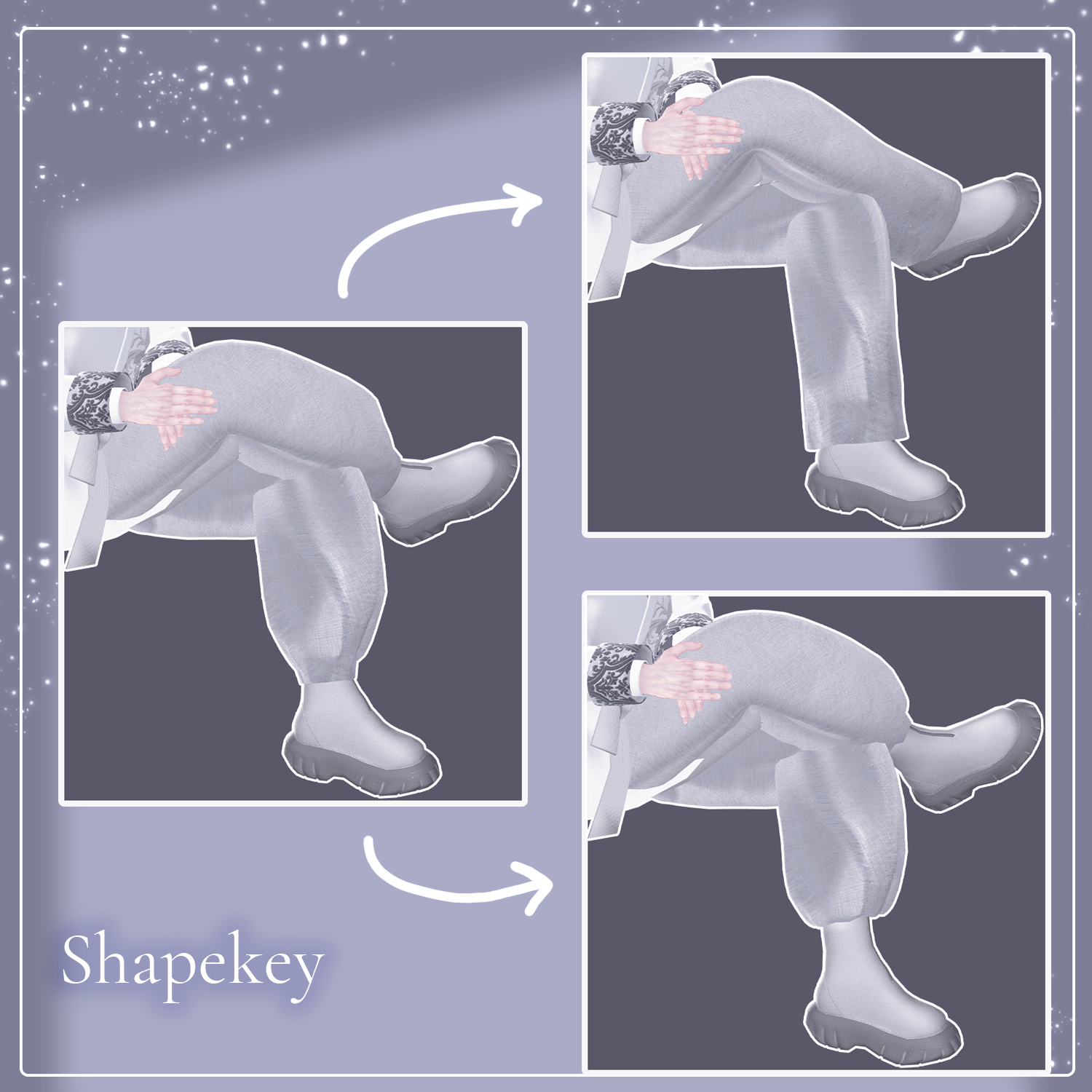
The bottom can be transformed into three distinct style types: Default, Boots-in, or Straight.
◆ Installation Guide
Set up the latest version of the VRC SDK using the Creator Companion (VCC).
Install the required assets (liltoon, Modular Avatar) via VCC.
Import the latest package version of your respective avatar body.
Import this product's package data.
Drag and drop your avatar (or its dedicated dress-up/modification prefab, if available) into the Scene's Hierarchy.
If necessary, hide any unwanted default clothing or underwear meshes on the avatar, or set them to Editor Only.
Drag and drop the prefab named [OutfitName]_[AvatarName].Prefab directly into your avatar's root hierarchy.
Upload the avatar via the VRC SDK.
◆ Usage Precautions
The veil uses a semi-transparent shader. Due to the technical nature of how transparency renders, if you notice it displaying or clipping in unintended ways for other users, please hide the veil immediately.
The veil can be toggled ON/OFF directly via the in-game Expression Menu (EX Menu).
The hem of the jacket is highly prone to clipping. Please note that it may break or clip when performing movements such as sitting with legs crossed, bending over, etc.
To prevent the shoes from sinking into the floor, an "MA Floor Adjuster" component has been applied to certain supported avatars. You can adjust the height to your liking (Available for the Hanka and +Head versions).
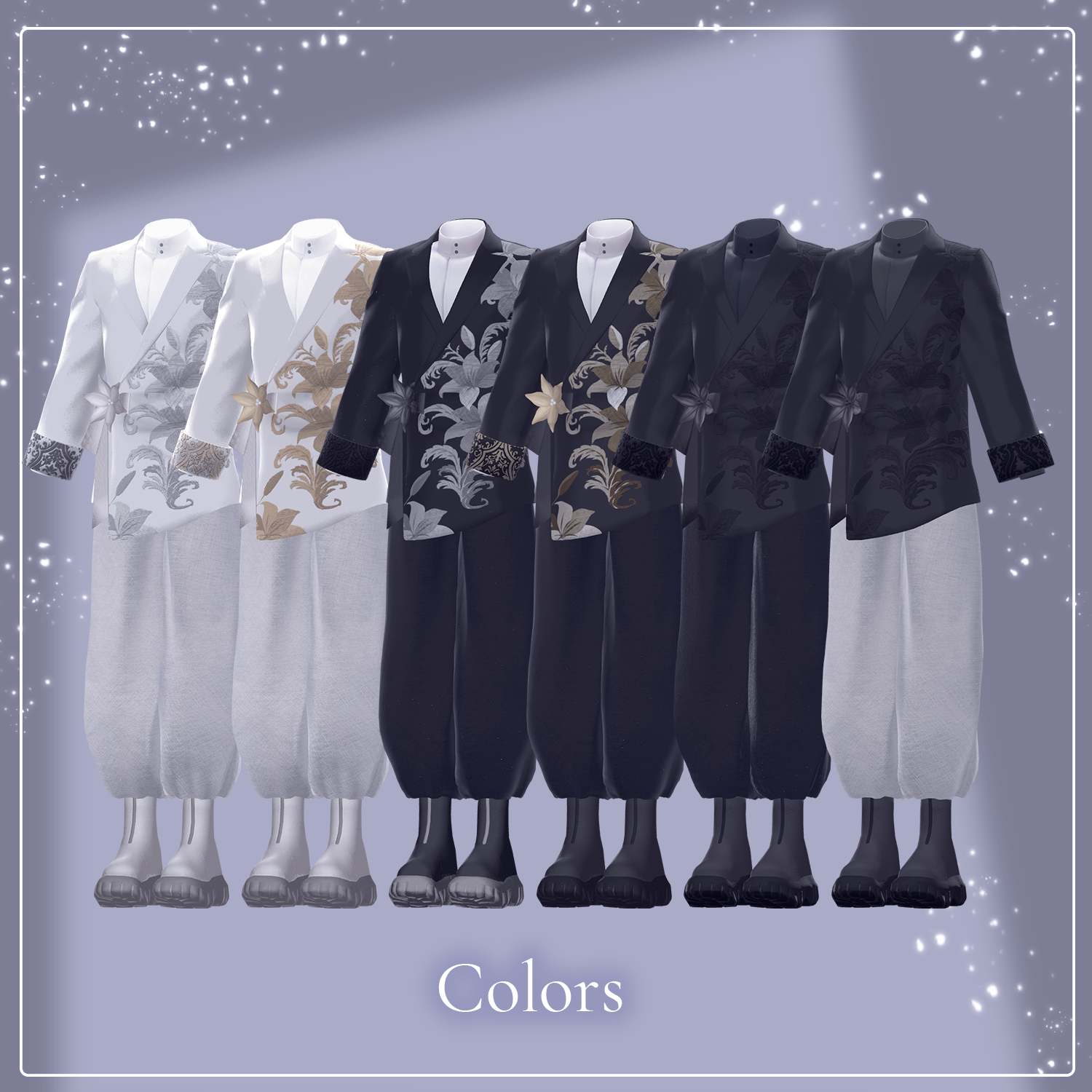
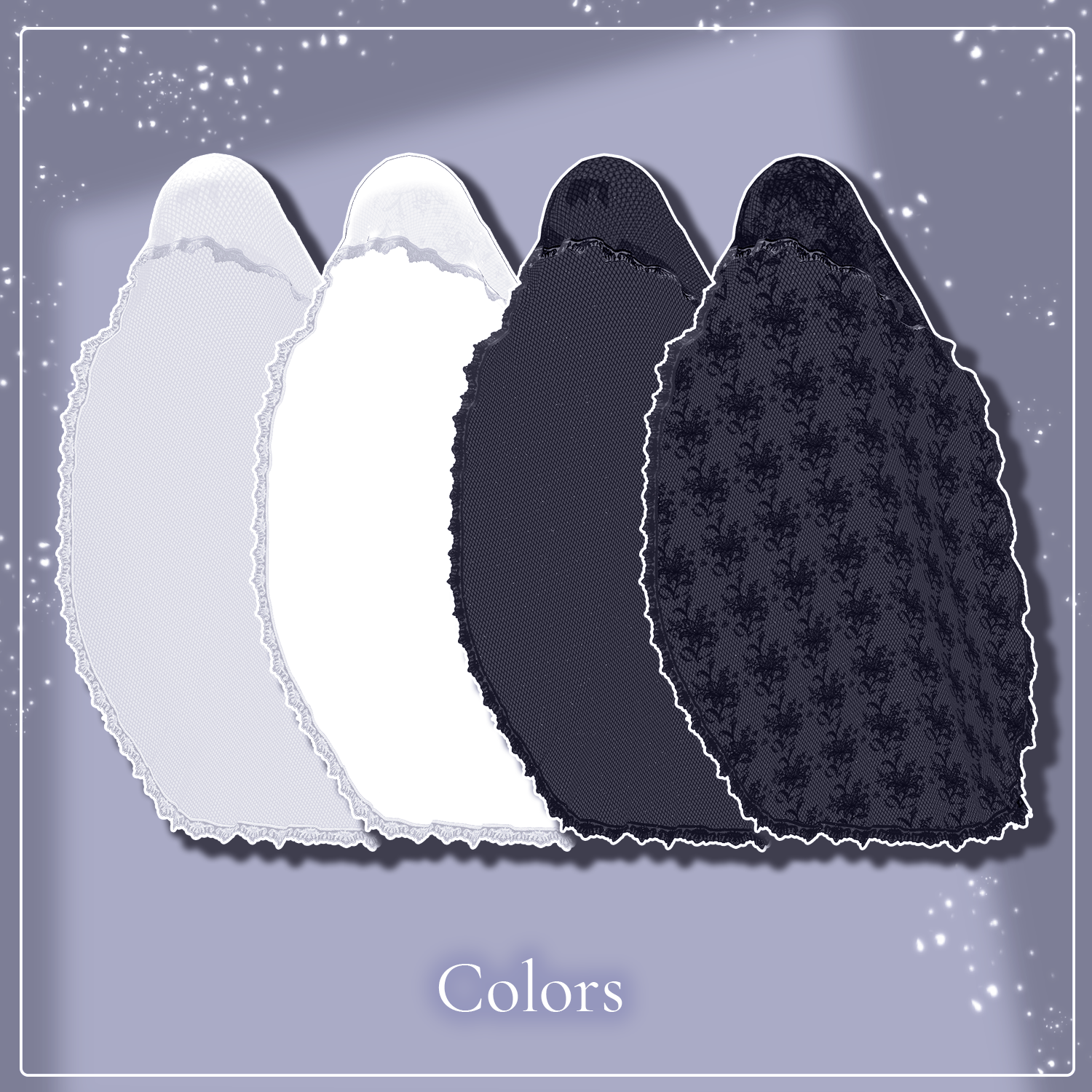
◆ Changing Colors
Please swap out the materials located in the Common > Material folder with the respective color variation materials provided.
Because this product has been pre-configured with "MA Material Swap," you can easily change colors directly within the MA Material Swap component located on the clothing's Root object.
If you prefer to change the material for each individual mesh object, you can do it the traditional way by directly dragging and dropping materials onto the desired object, or by changing them in the Inspector.
(Note: Changing materials directly will cause the "MA Material Swap" component to stop working. If you wish to use "MA Material Swap" again, simply revert the directly modified materials back to their default import states).
◆ Terms of Use
https://drive.google.com/drive/folders/1qRMXoIxM1ZgacBPfwOigQRtXP1vCbNMn?usp=sharing
Please use this product in compliance with the terms of use of your base avatar.
◆ Creation Environment
Modeling: Blender Ver 4.2
Textures: CLIP STUDIO PAINT, Substance 3D Painter
Setup:
Unity Ver 2022.3.22f1
VRChat SDK - Avatars Ver 3.10.3 (VCC)
liltoon 2.3.2
ModularAvatar 1.17.1
◆ Credits
Creator: korarako
Personal Store (BOOTH): https://korarako.booth.pm/
Inquiries & Support:
https://discord.gg/bmw3PWE37M