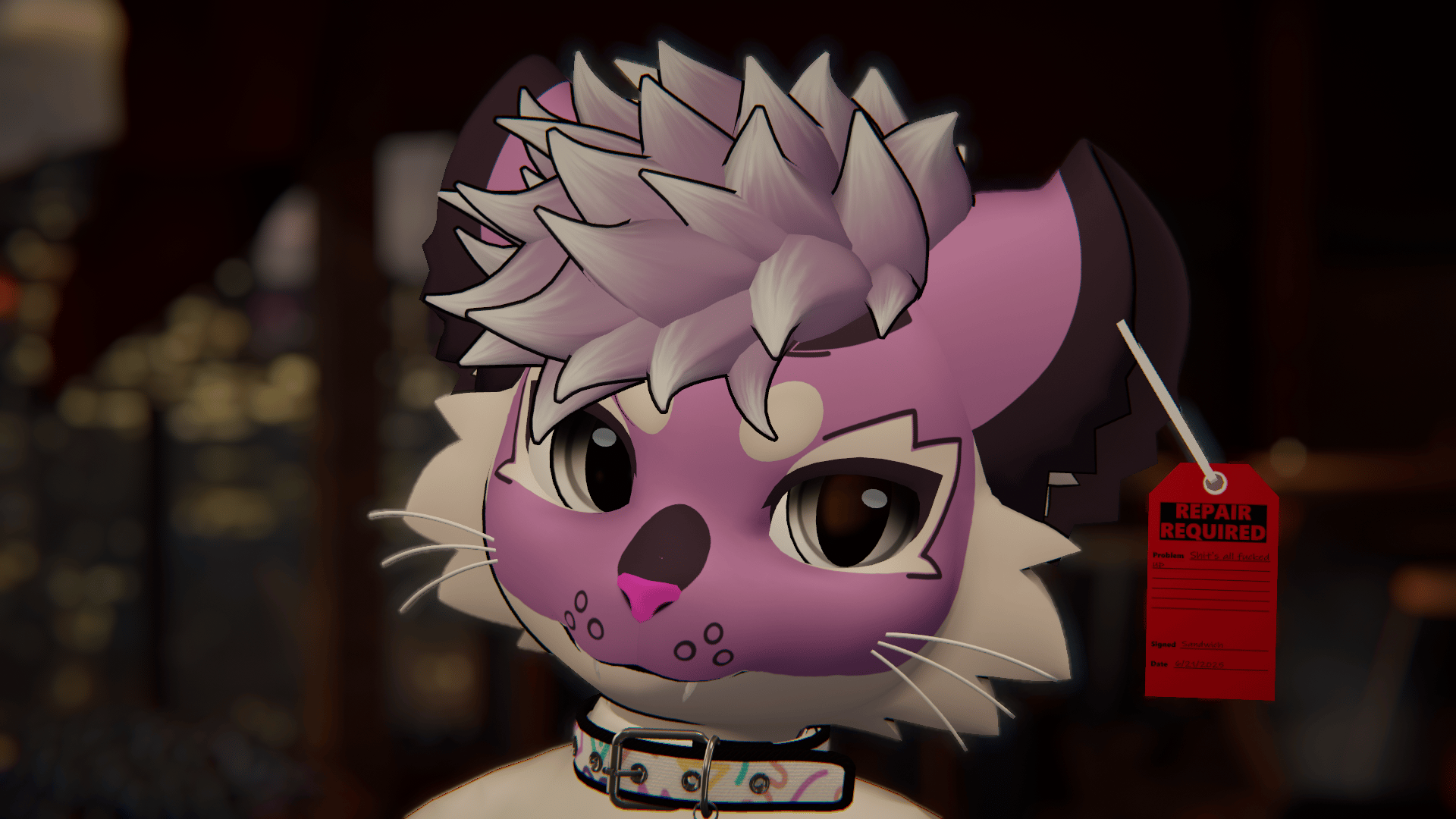
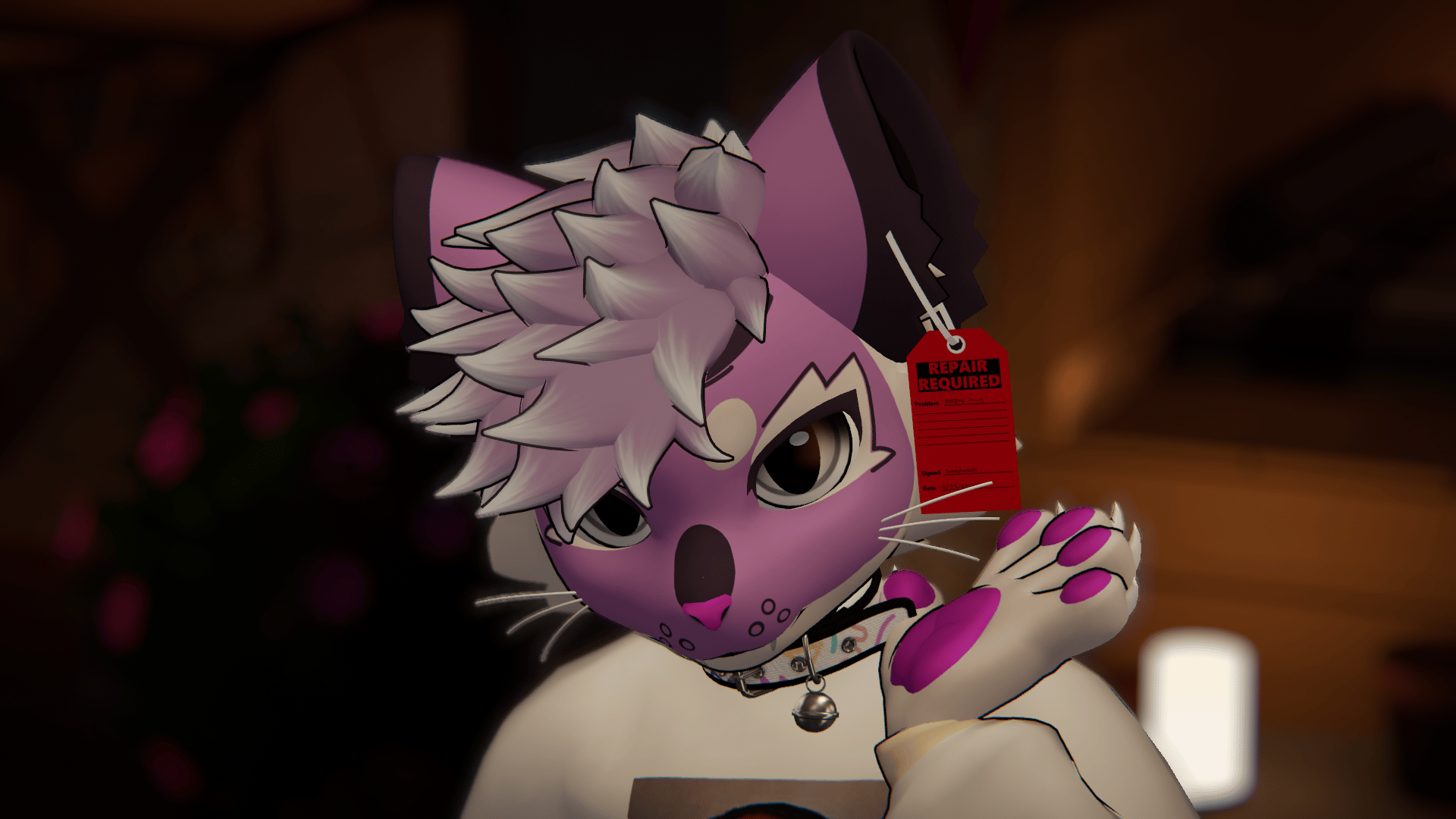
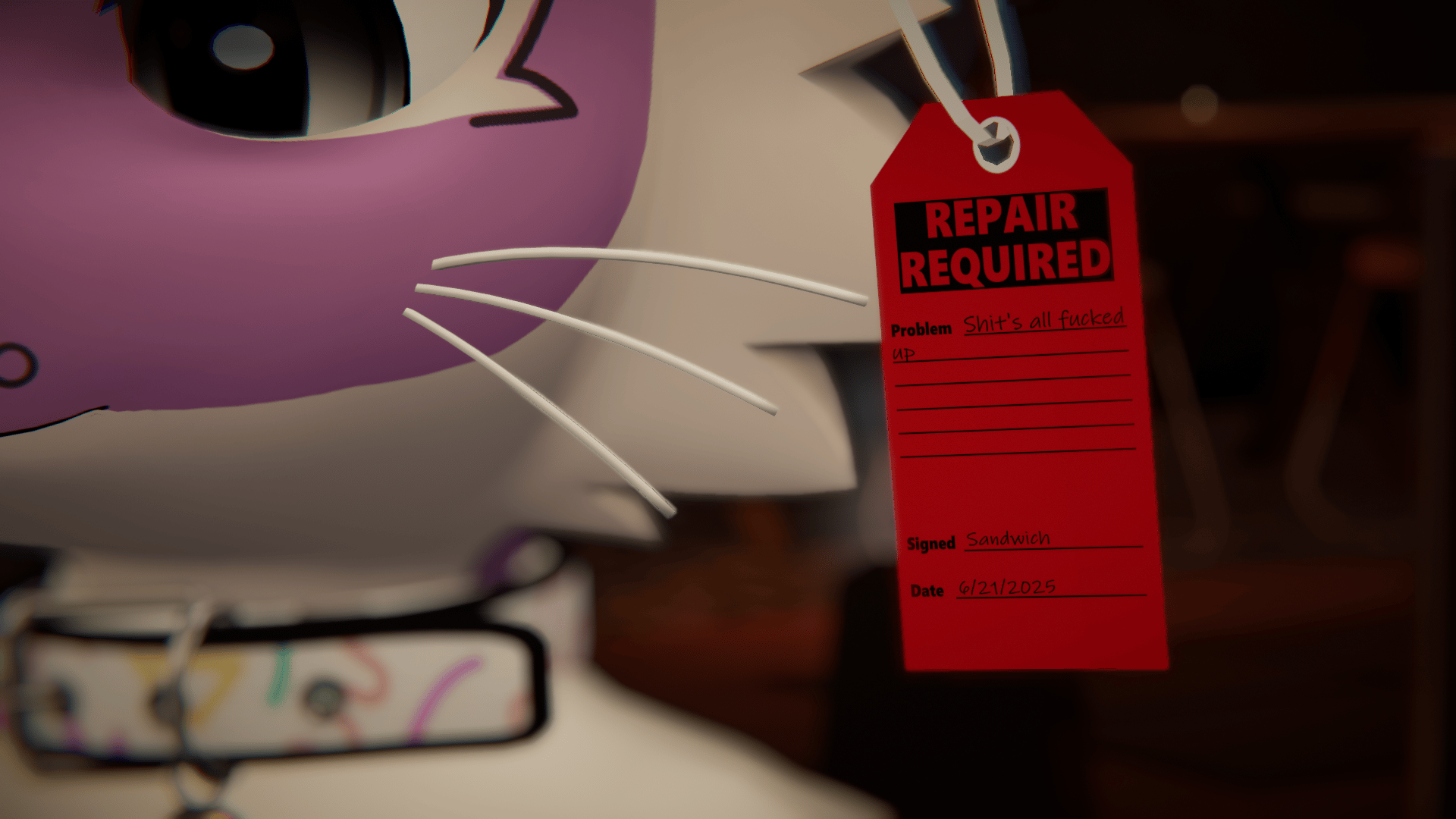
Lock Out Tag Out Repair Required Tag | FREE vrchat asset |
Tags
Product Description
It's all broken...
But if you Tag it out it might get repaired!
Properly tagging out your damaged equipment is key in creating a safe working environment and to keep OSHA from banging on your door.
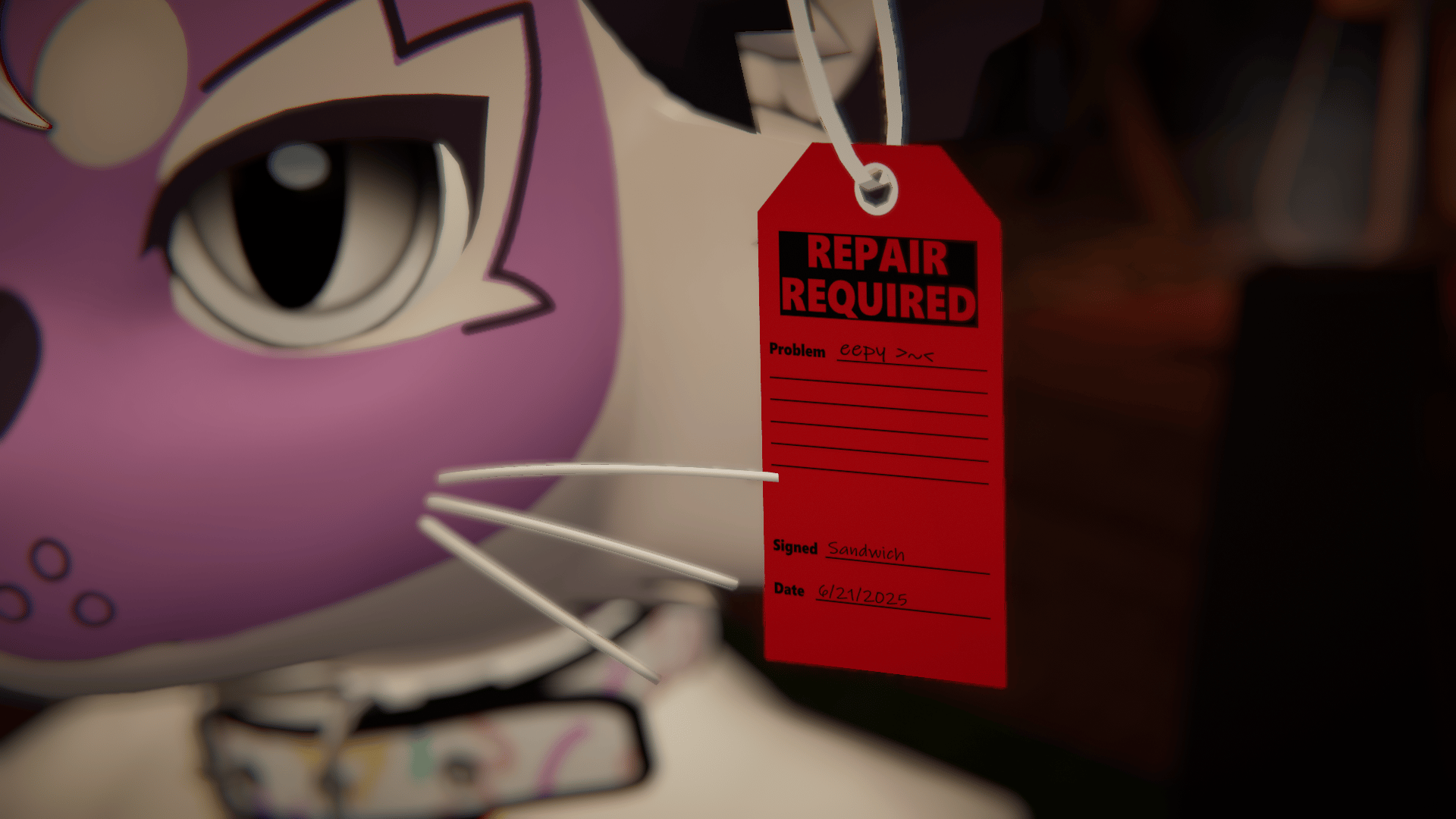
Just simply write what the issue is, sign it, and date it! This lets people know that the machine is damaged and they should not be using it until is it properly repaired.
Features:
LOTO (Lock out tag out) Tag
2 existing variants ("eepy >~<" and "Shit's all fucked up" signed by yours truly)
Physbones that respond well to gravity
VRCFury setup
Base textures to make your own tags (.png and .pdn format)
Requires:
VRCFury
Poiyomi Toon
Installation
1. Import the unity package
2. UNPACK the prefab
3. Position and scale to where you would like it to be
4. Drag the armature onto the the desired bone on your avatar (ear, hand, anywhere)
5. Adjust the menu location, materials, etc to your liking
IF WHERE YOU WOULD LIKE TO PLACE THE TAG IS AFFECTED BY A PHYSBONE
1. Find the physbone component on the avatar that affects the tag (Typically on the root bone like an ear root or tail root etc, or on a separate object on the avatar)
2. Under the "Transforms" menu, there will be an "Ignore transforms" menu. Set the size to 1 (or 1 larger than the existing size)
3. Drag the armature component from the tag into the ignore transforms box, things should now play nicely
How to add/change textures (poiyomi MUST be installed and used)
In the textures folder, I included 3 blank slots to require minimal changes
1. Create your desired designs and overwrite the blank slots provided
2. Once you have all your designs in the order you like, select all of your textures
3. Right click on the textures, click on Thry > Flipbooks > Images 2 TextureArray
4. In the properties for the material, unlock the material (if locked) and find Special FX > Flipbook 0
5. Drag your new texture array into the texture array property
Want more than 5 designs?
1. Follow all steps prior
2. Find the tag asset on your avatar that has the VRCFury toggles
3. Under the Materials toggle, Set the "Frame Number" field to the number of designs you have(Default 5)
Export and you are done!