Product Description
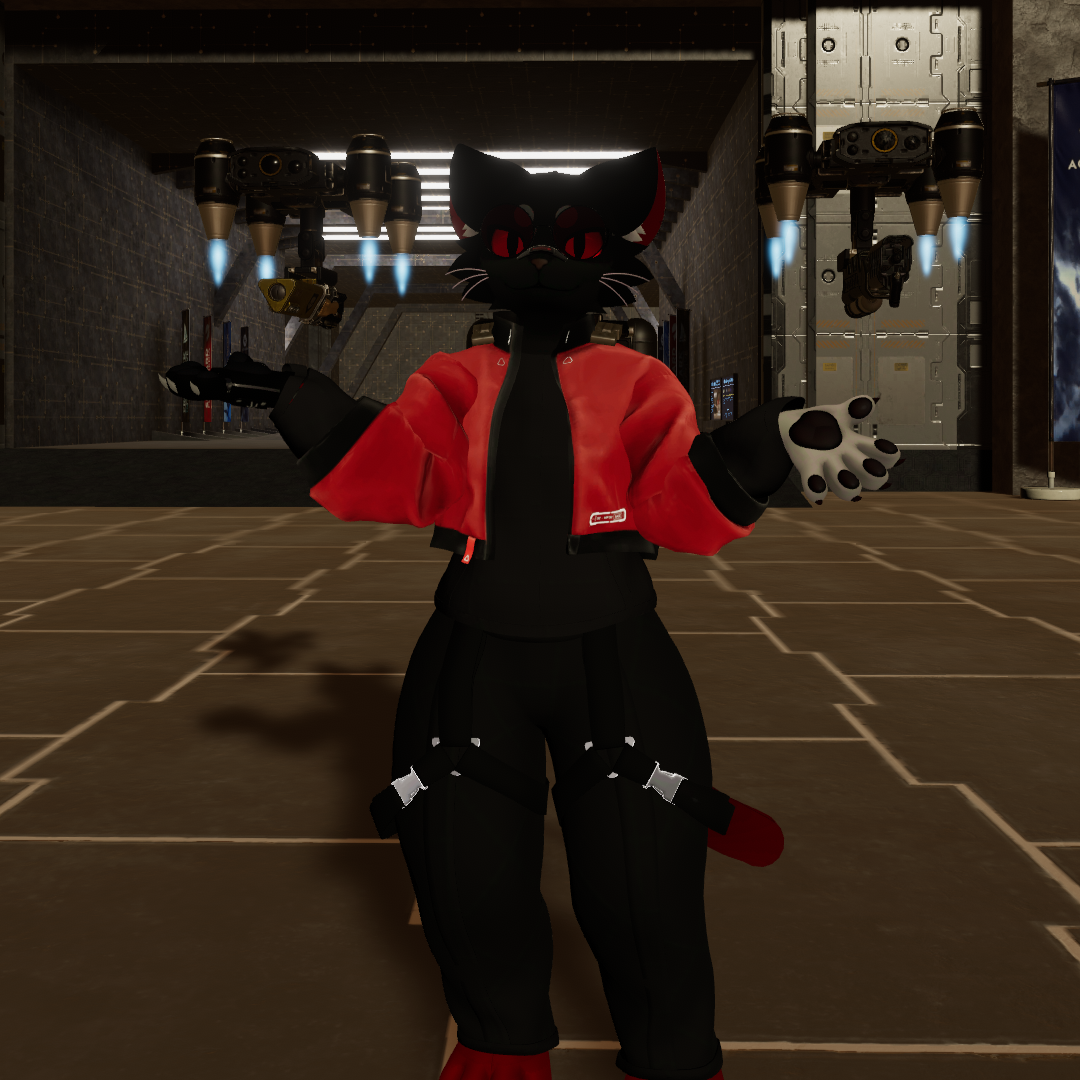
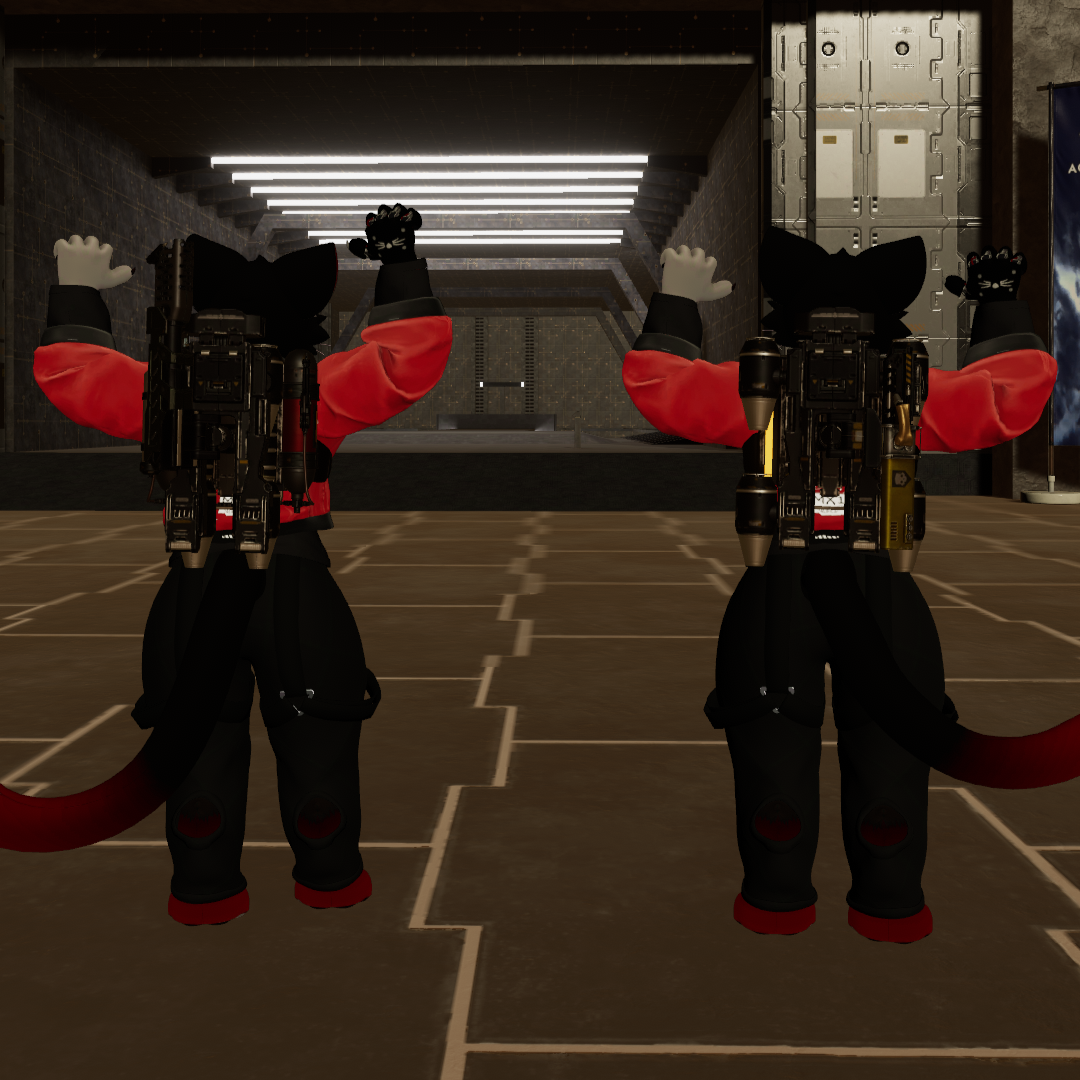
Equip your backpack, deploy your drone, and stay at the forefront with your companion drone ready to fight for democracy.
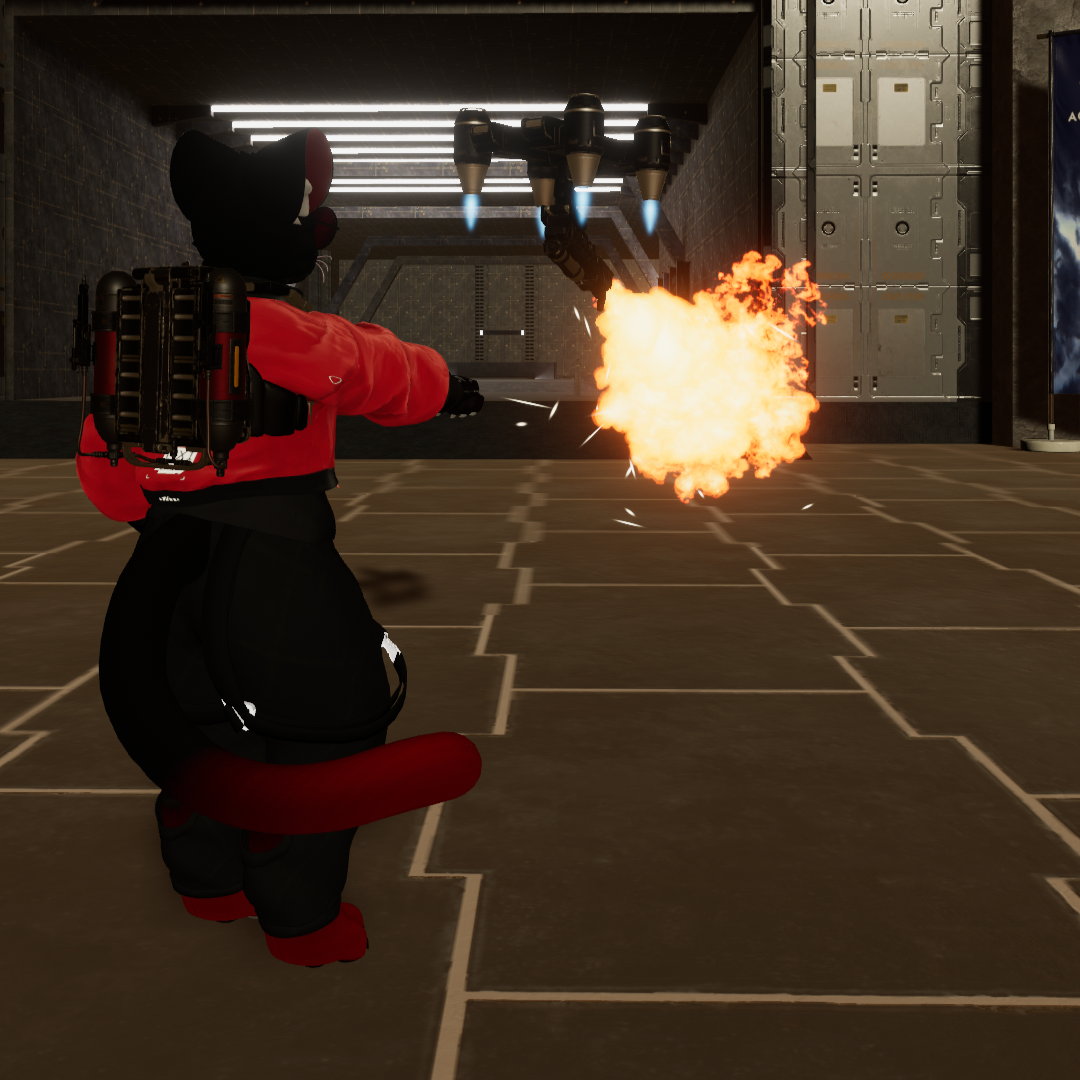
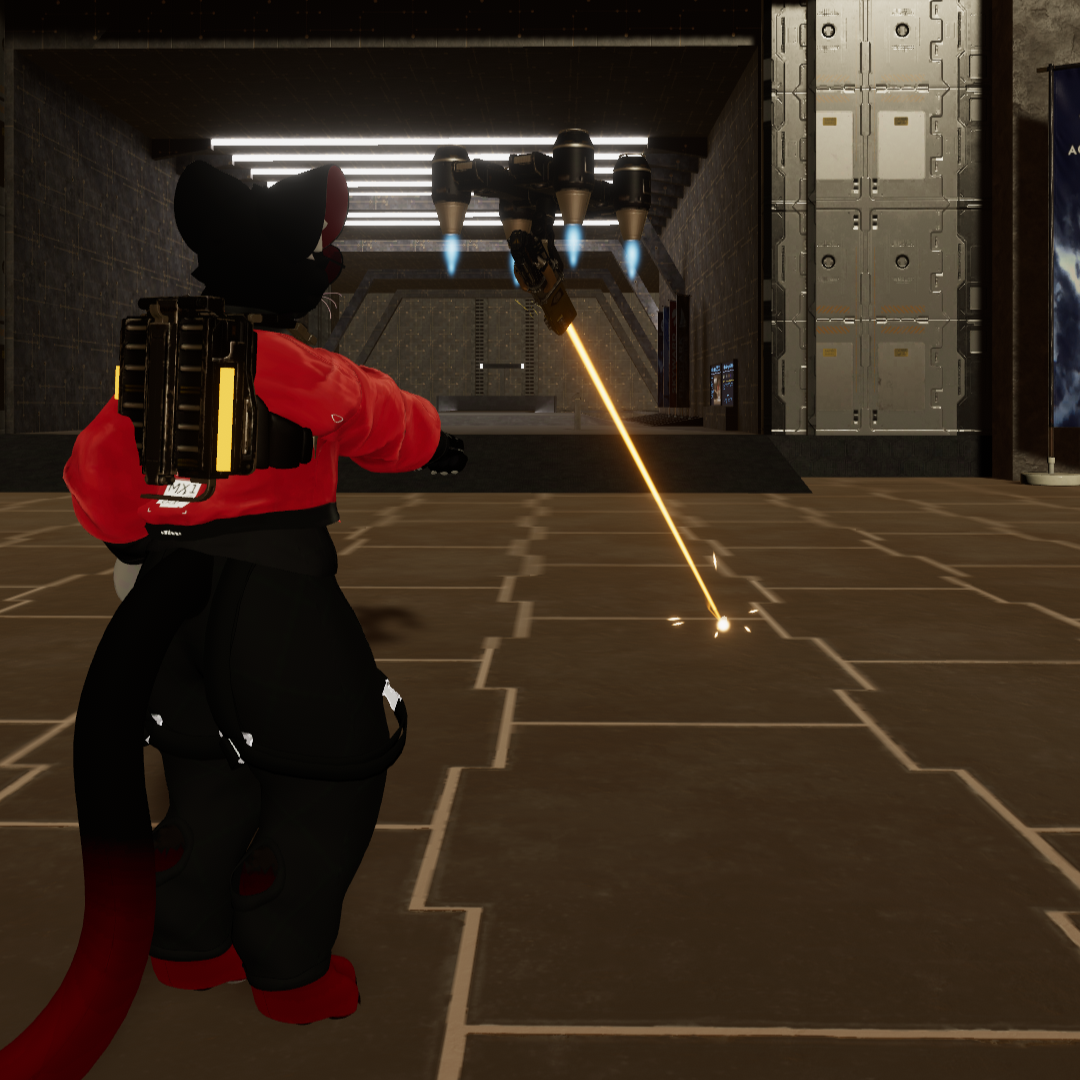
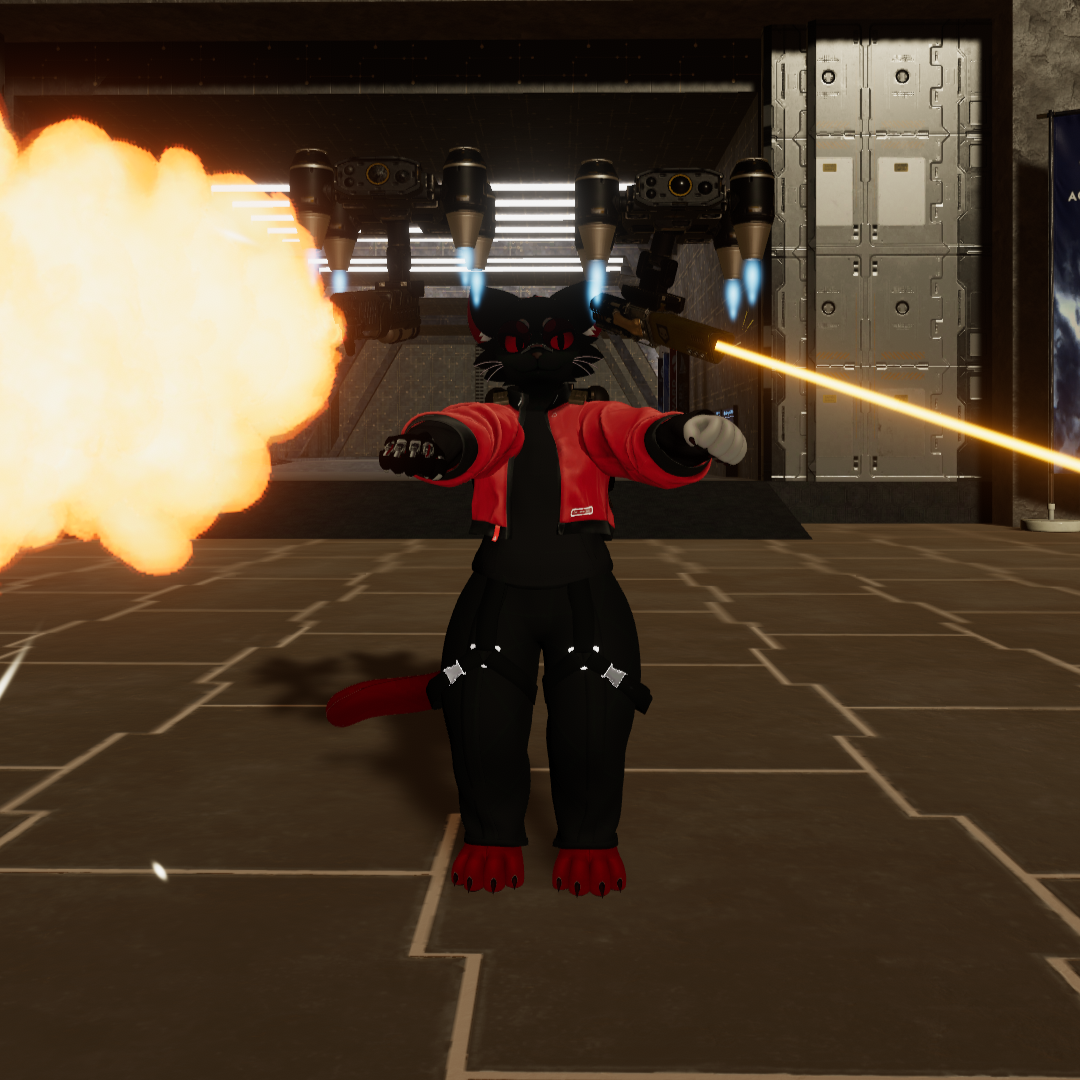
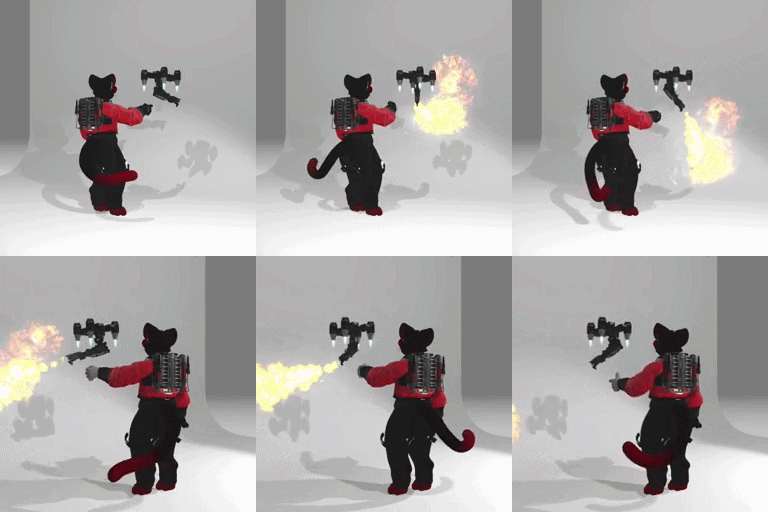
Once deployed, the drone will follow you everywhere, and in Attack Mode it can engage enemies using fire or laser (depending on the drone), with aiming linked to your hand.
【Weapon Functionality】
The drone’s position is controlled through the radial menu. You can let it rest on your shoulder, switch sides (right to left), or move it into Attack Mode to aim and fire using your hand.
- Laser Drone: Fires a laser beam that leaves a visible trail on impact.
- Flamethrower Drone: Fires a long-range flamethrower forward.
【Controls】
Radial Menu controls the drone’s position.
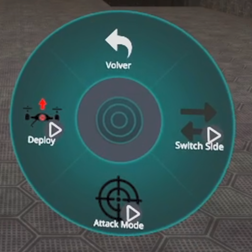
- Deploy: Sends the drone into flight.
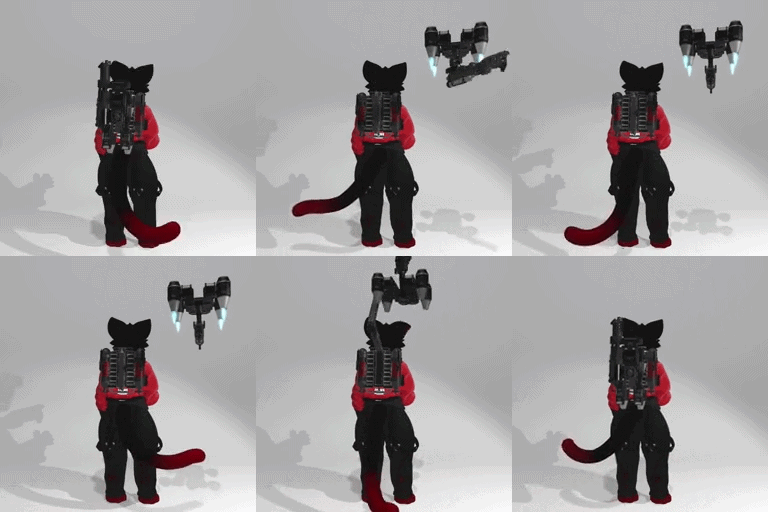
- Switch Side: Moves the drone from right to left (can be used in Attack Mode).
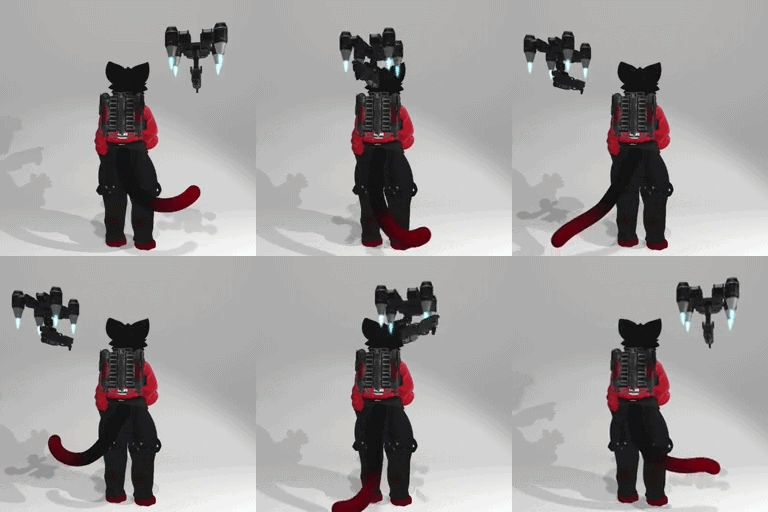
- Attack Mode: Moves the drone forward into combat position, allowing you to aim and fire.
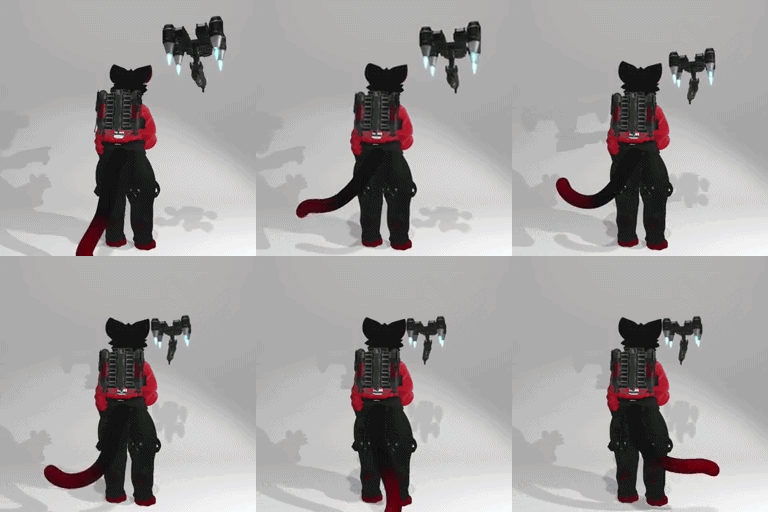
- Aiming: In Attack Mode, you aim using your hand. The controlling hand depends on the drone’s side.

- Firing: In Attack Mode, making a fist with the controlling hand fires the drone in the aimed direction.
【Features】
- Drone follower functionality
- Easy to use, aim, and fire
- Animations and particles with colliders
- Integrated audio for each shot
- Easy installation with VRCFury
【Requirements】
- Poiyomi Shaders ( https://github.com/poiyomi/PoiyomiToonShader )
- VRCFury ( https://vrcfury.com/download/ )
【Don't include】
- The Mayu Avatar
【Installation】
- Import the .unitypackage file and locate the drone folder of your choice.
- Find the .prefab file and drag it onto your avatar.
- Adjust the asset’s position and scale.
- Select the GameObject “R_Hand Constraint” and place the arrow on your right palm pointing toward the avatar’s fingers.
- Select the GameObject “L_Hand Constraint” and place the arrow on your left palm pointing toward the avatar’s fingers.
- Once everything is set, the avatar is ready to upload.
【Terms of Use】
- Don't resell.
- Don’t distribute.