Product Description
 Now on PC and Quest.
Going AFK? The ball's got you.
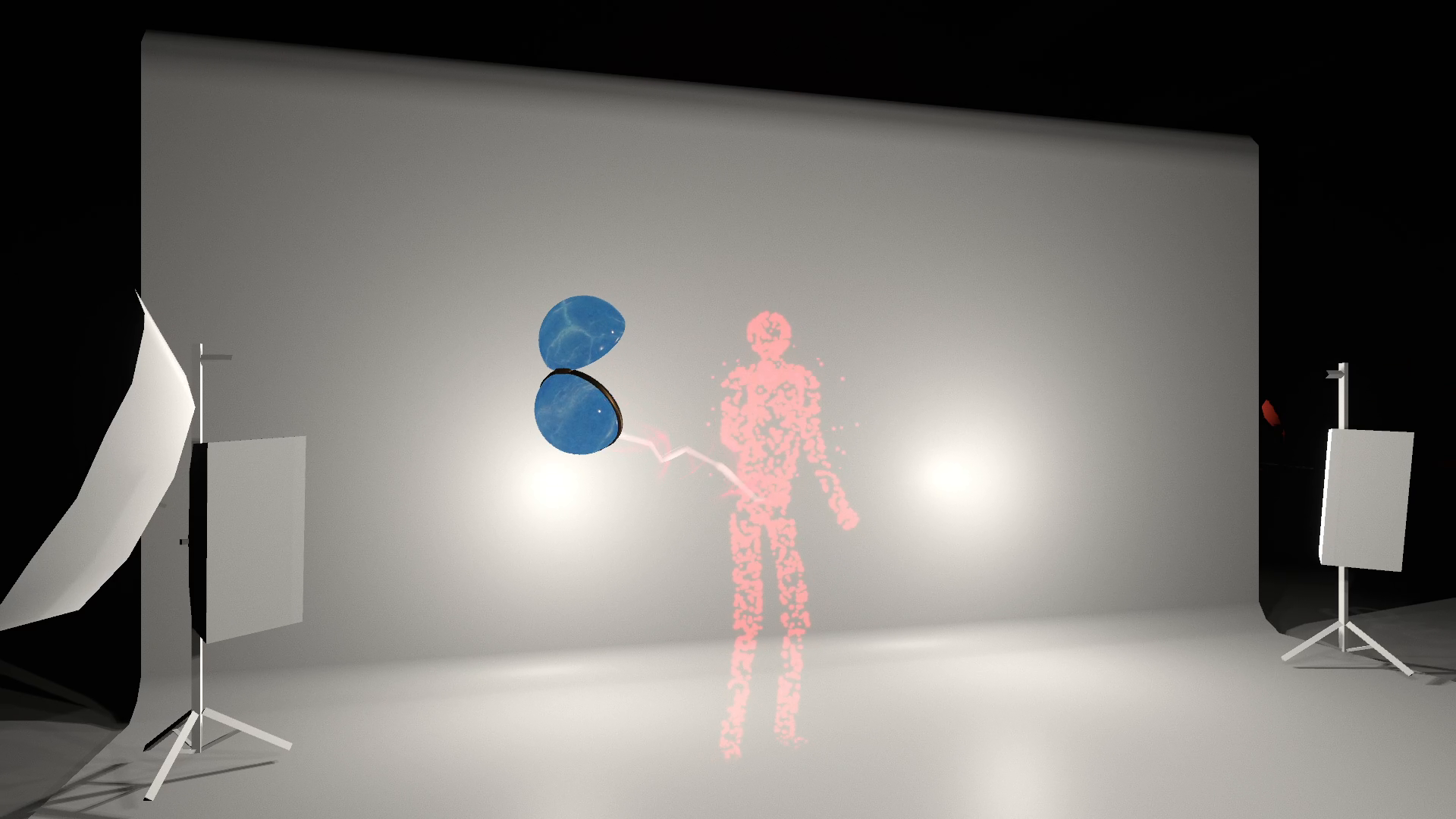
Take a break. When VRChat marks you AFK, a blue ball drops in, opens up and pulls your red silhouette inside with an energy beam. It starts on its own, like when you take off your headset.
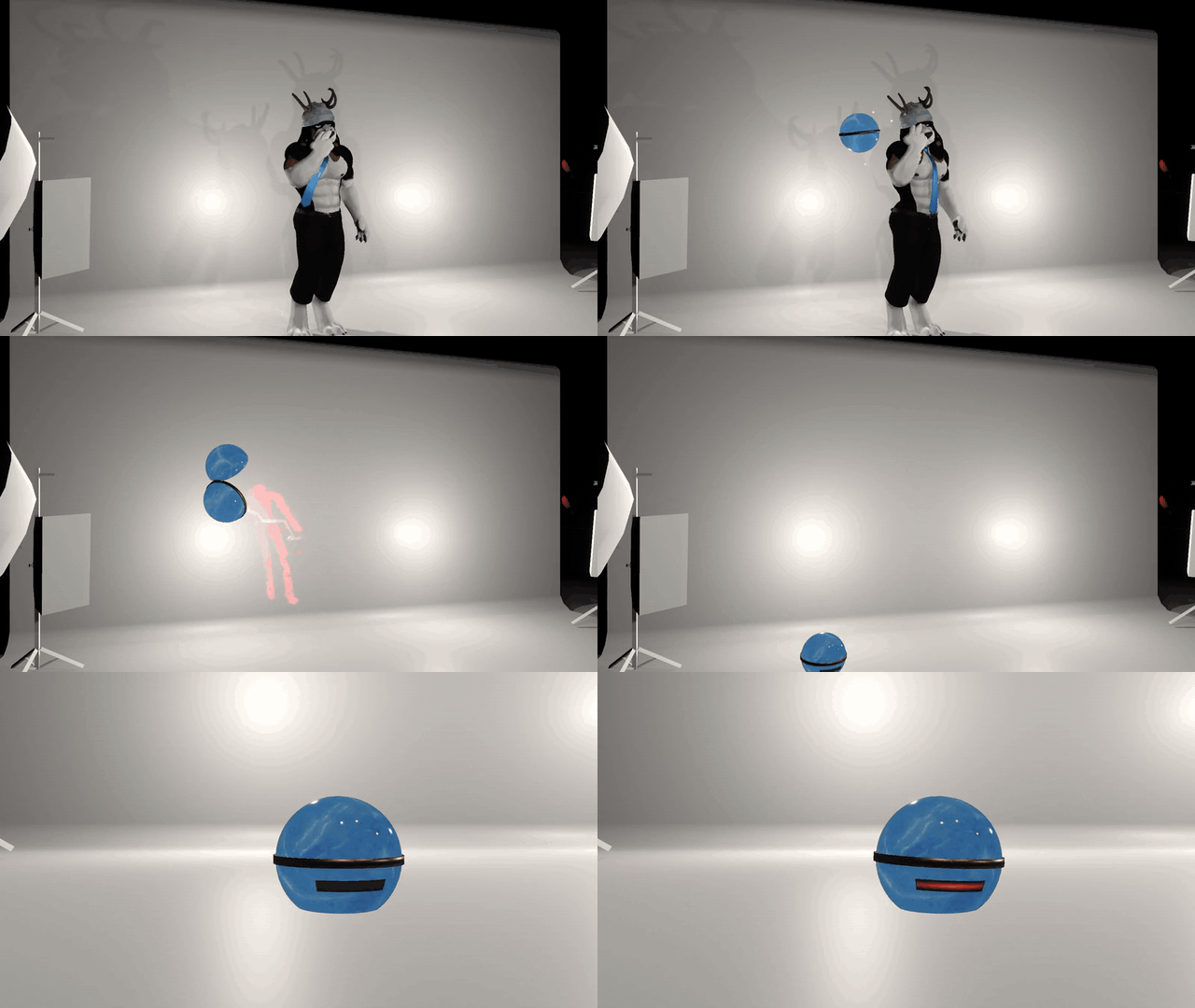
Three shakes. Then it waits.
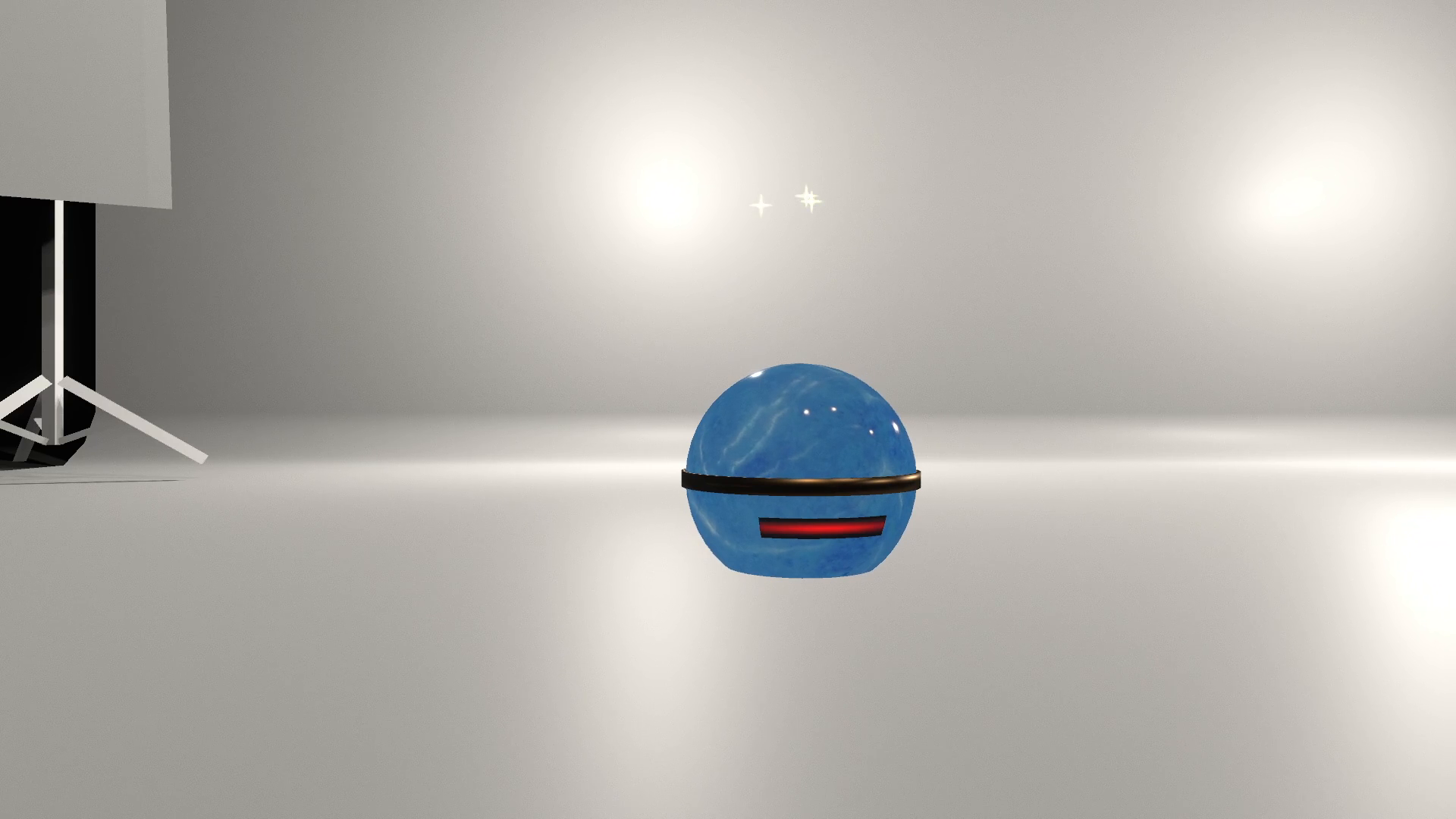
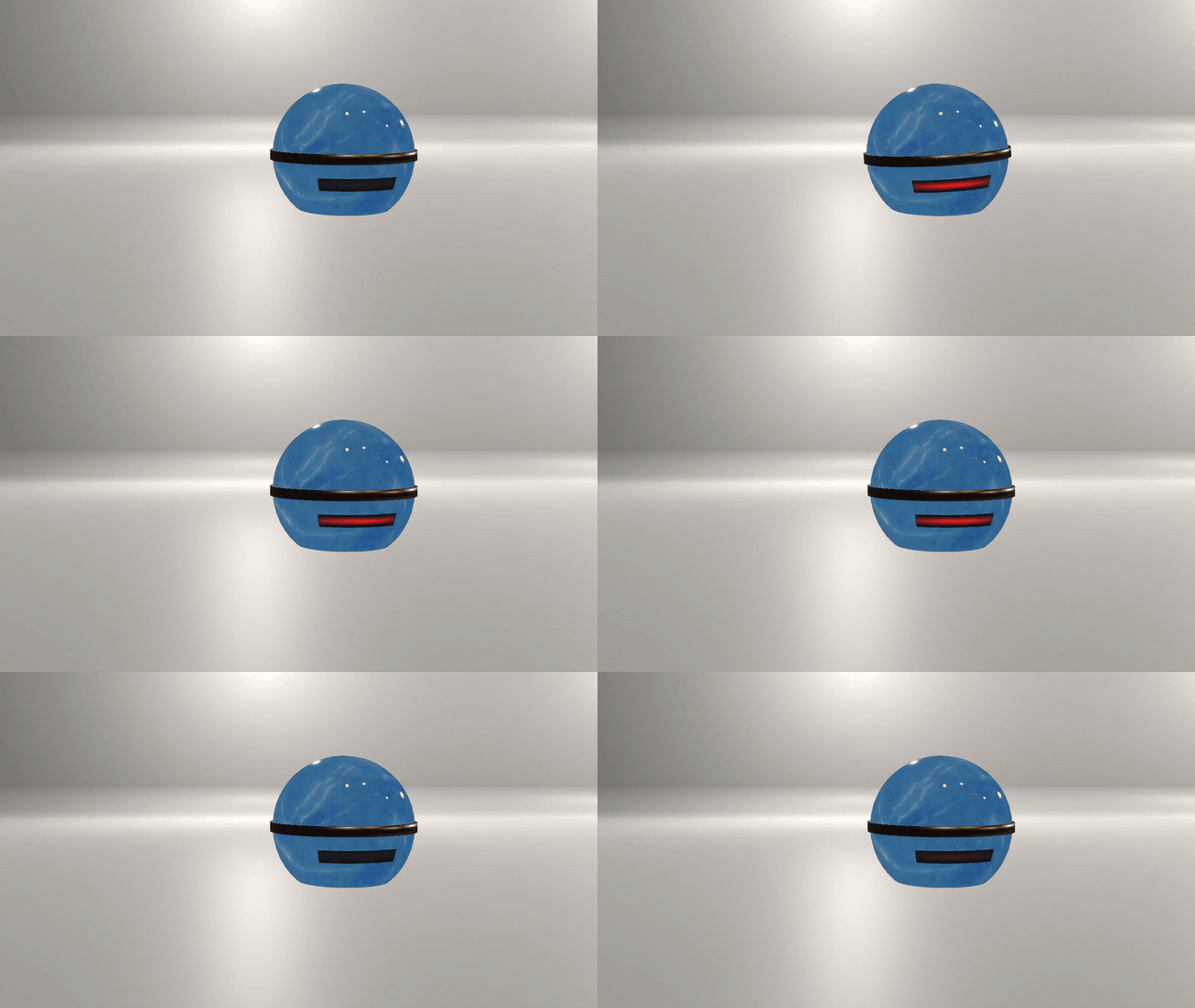
The ball lands, shakes three times and stays there with its light pulsing while you're away. On PC, custom sounds follow the drop, capture, landing, shakes and release. The Quest version has no particles or sounds.
Back? You're out.
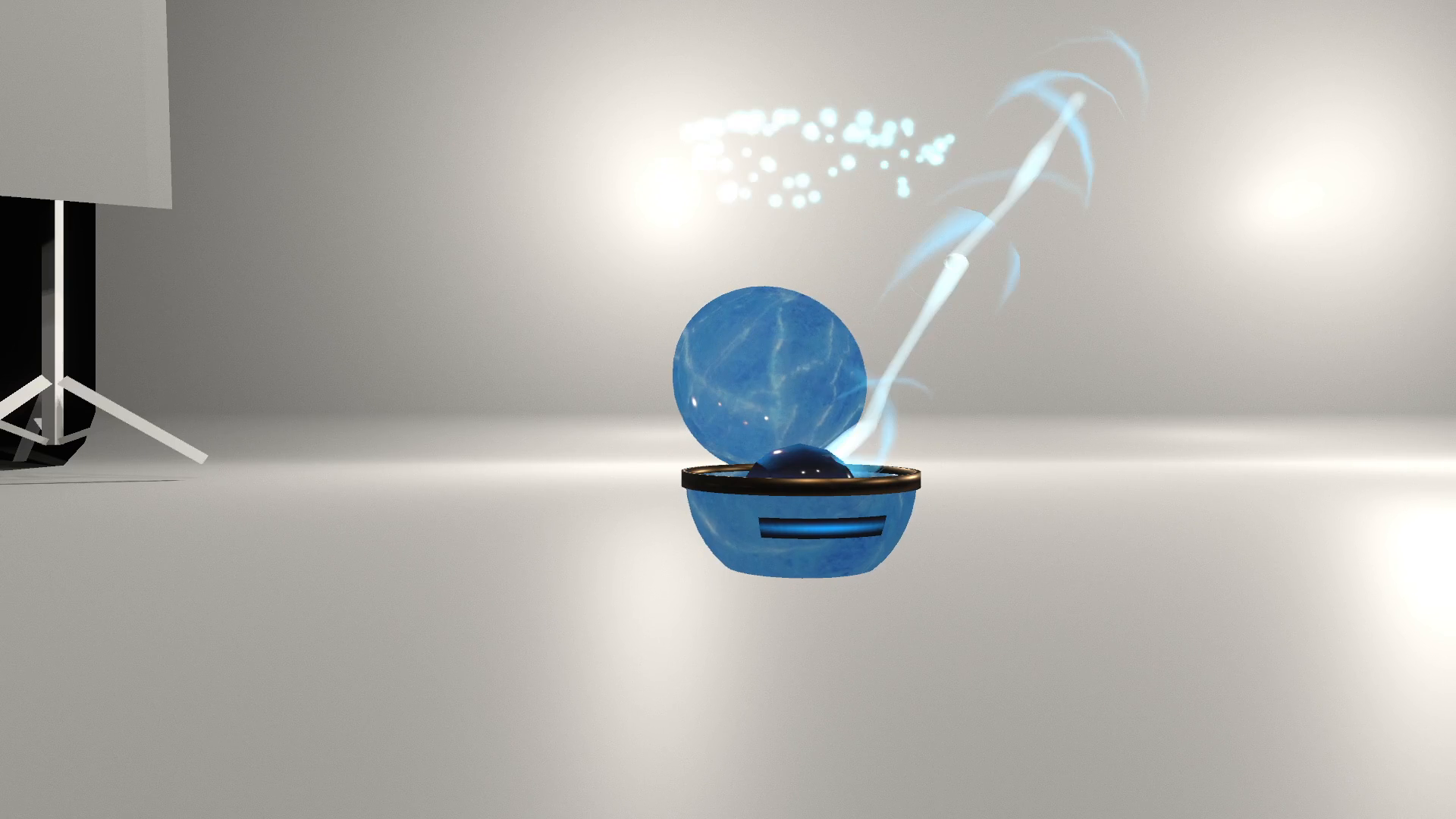
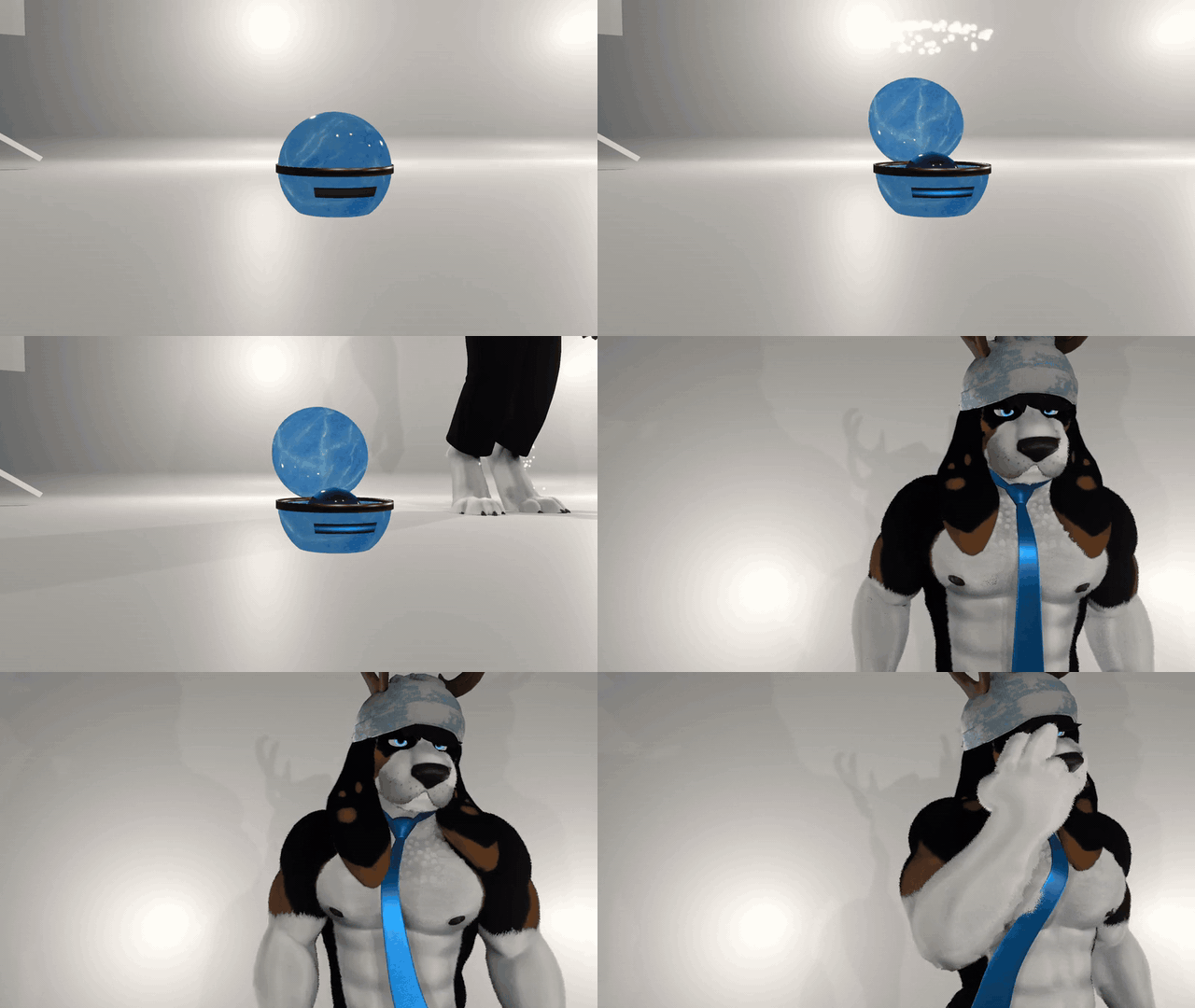
Come back and the lid pops open with a cyan flash. Your avatar returns, and the ball gets out of the way.
Keep AFK Ball → Enabled on in your menu. The saved Enabled toggle lets you switch it off.
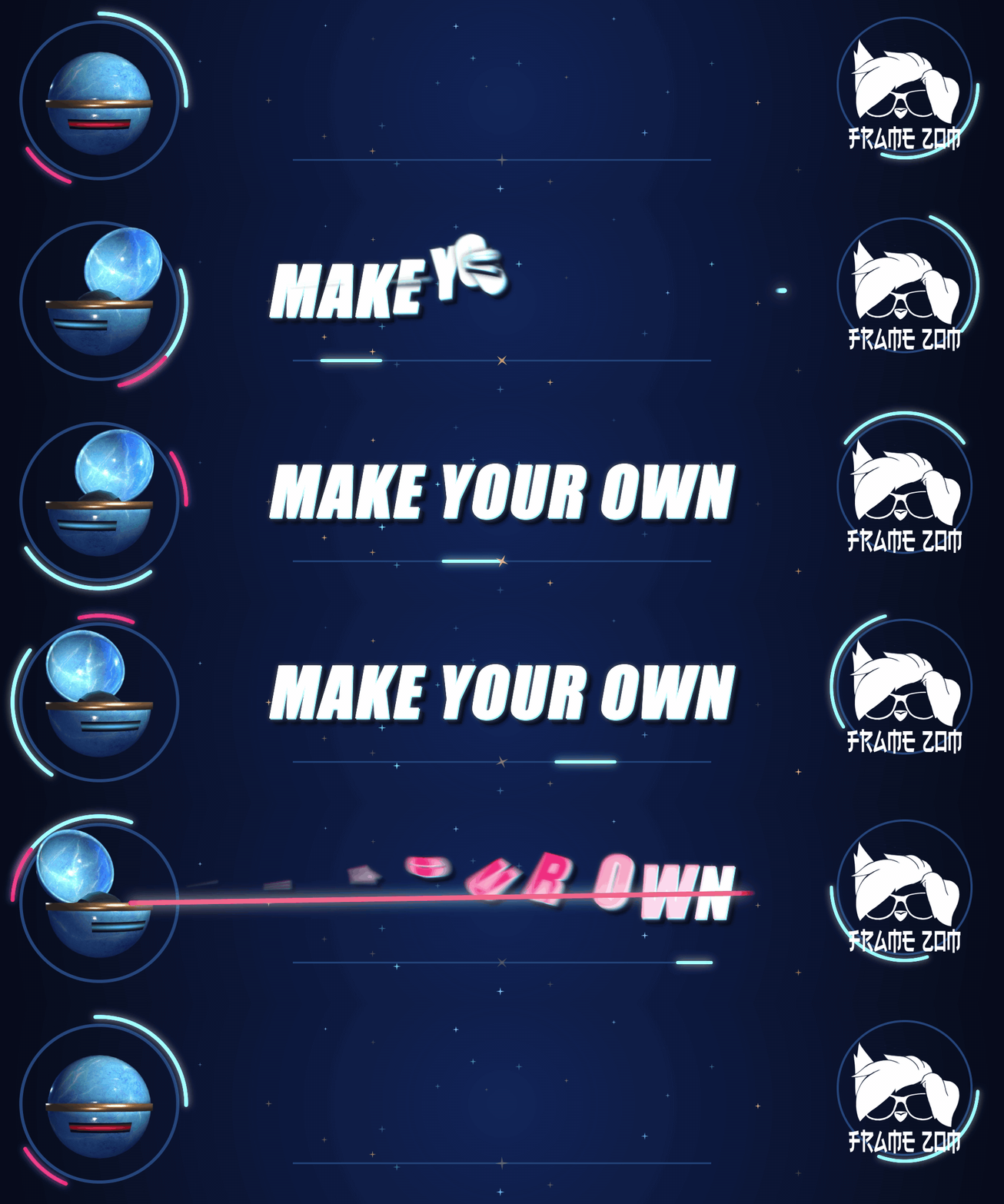
Your model. Same little trick.
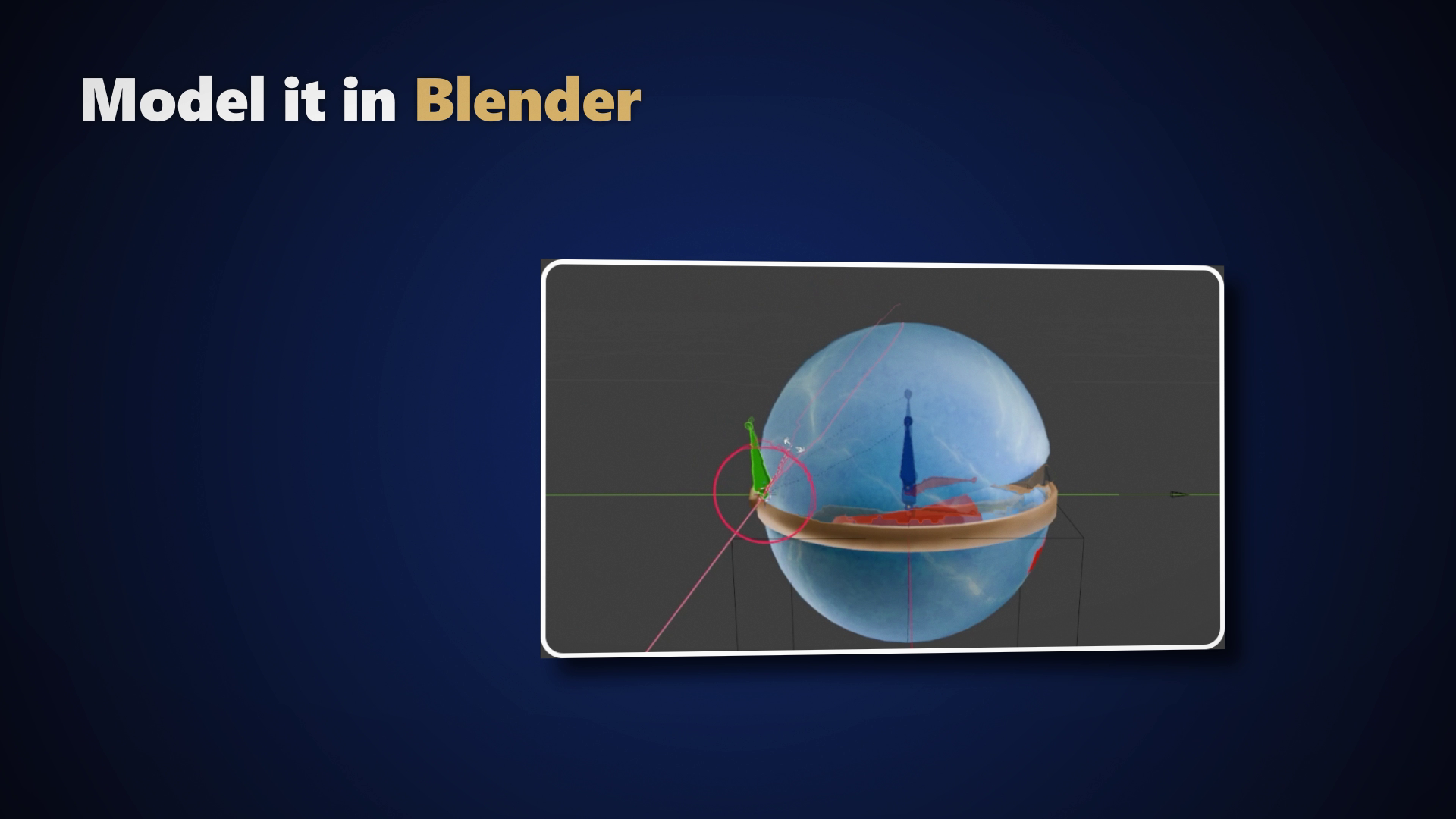
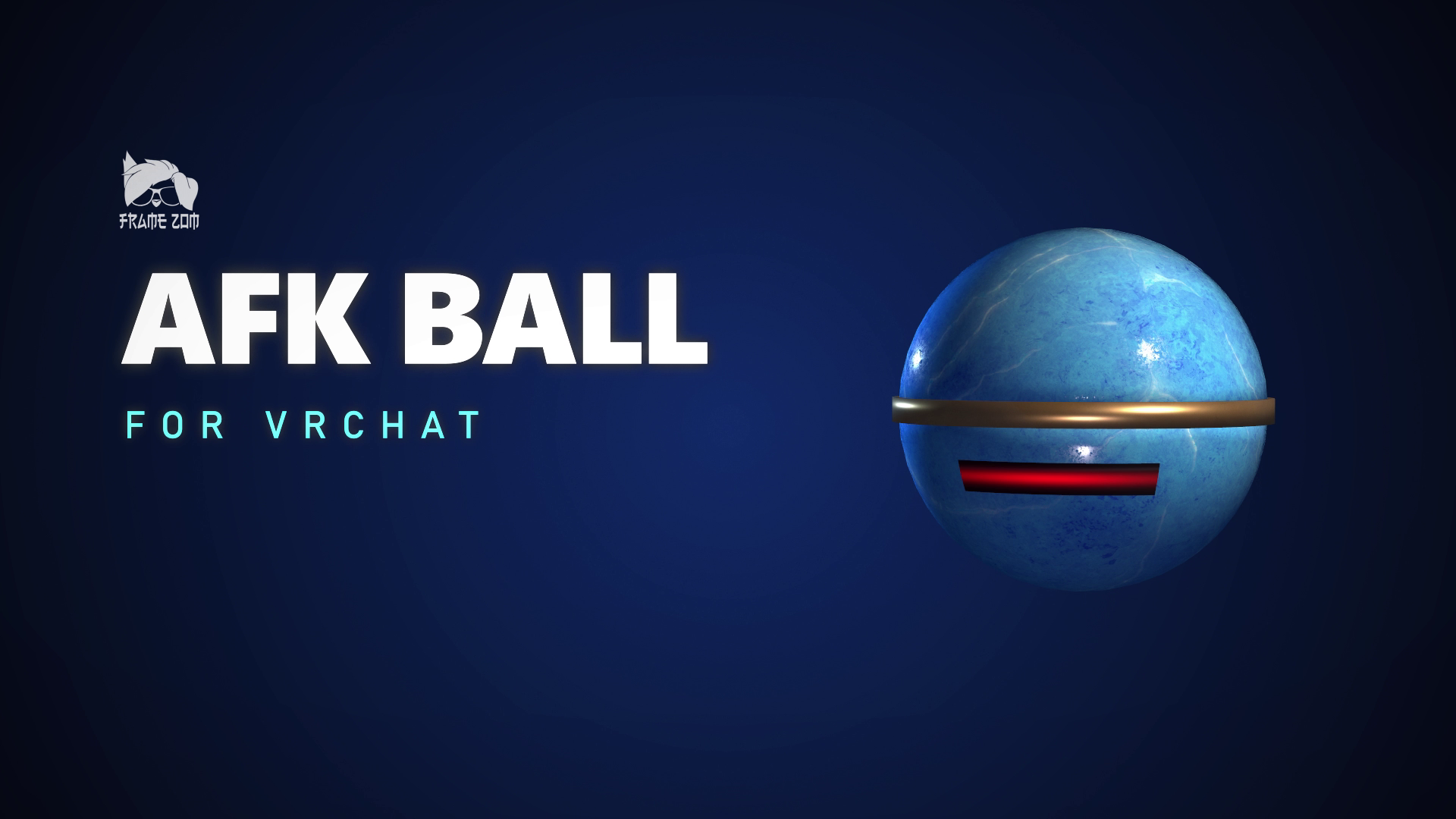
You get the blue AFK Ball for PC and Quest, plus a kit to make your own model for PC. Build around the Blender template, give it a lid, then bring it into Unity. The PC customizer keeps the animations, beam and light. Quest uses the included blue ball.
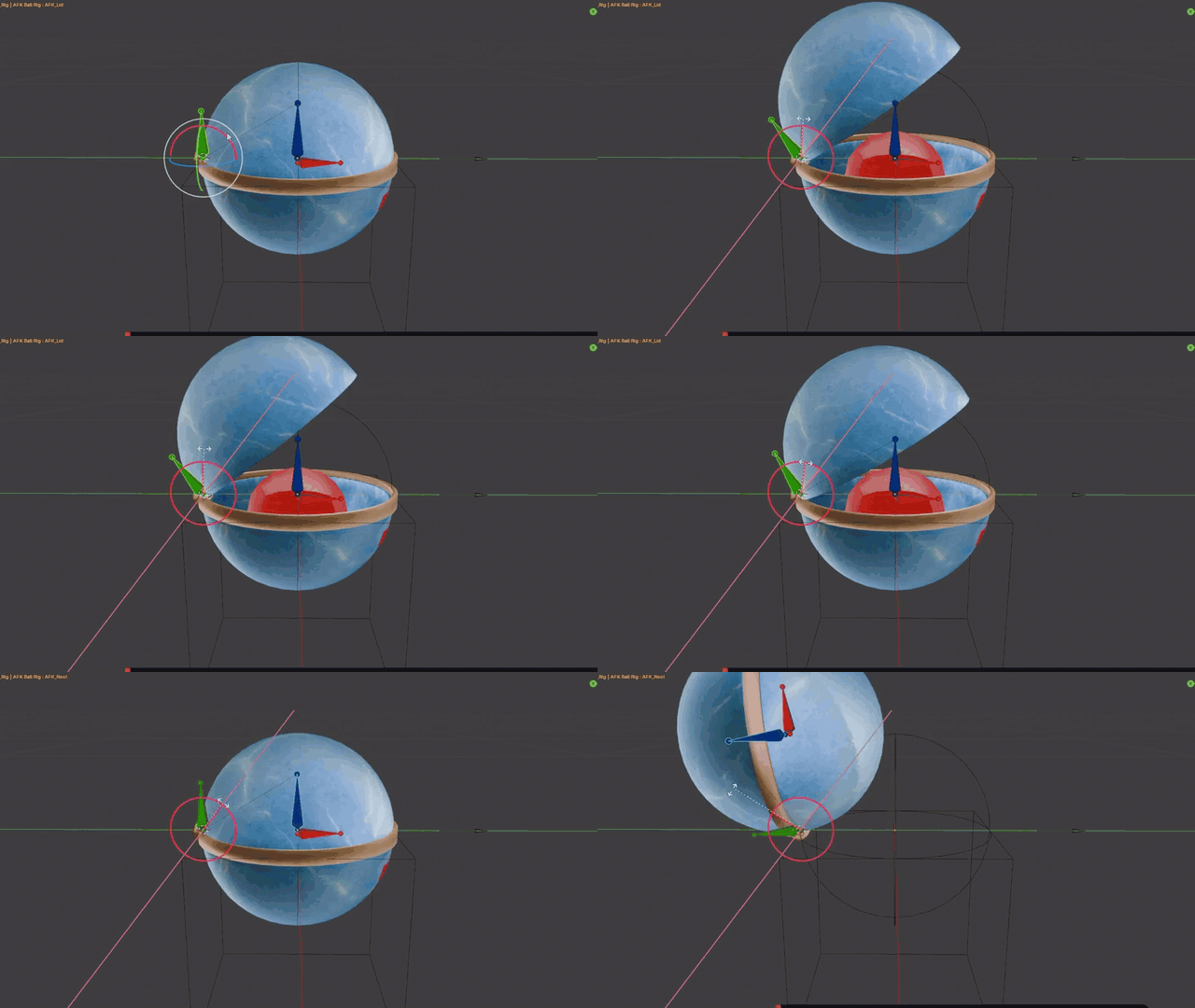
- Keep the three bones: AFK_Root, AFK_Lid and AFK_Emitter.
- Paint the body and lid weights so your model opens properly.
- Follow the included PDF to export an FBX, then open FrameZom → AFK Ball → Customize Your Model in Unity.
The full tutorial is in the gallery. It covers Blender, texturing and Unity; its on-screen instructions are in Spanish.
The blue AFK Ball and model kit are included. Other shapes in the promo and tutorial are custom model examples and aren't included. The avatar isn't included either.
- AFK Ball prefab with VRCFury setup that sizes itself to your avatar. Includes a separate, lighter Quest prefab with VRChat Mobile shaders for your Android upload.
- The blue ball model and textures, with Poiyomi materials for PC and VRChat Mobile materials for Quest.
- Custom sound effects for the PC version.
- Blender rig template and a Unity model customizer.
- Illustrated PDF guide with FBX export, Unity setup and terms.
- Substance 3D Painter source (.spp) for the blue AFK Ball.
Drag it in. Upload. Done.
- Import the package into your avatar project with VRChat Avatars SDK and VRCFury installed. Poiyomi Toon is only needed for PC.
- Drag AFK Ball.prefab onto the root of your PC avatar. For Android, use AFK Ball (Quest).prefab instead. Use one prefab per avatar upload.
- Upload. VRCFury adds the menu and animations. Leave AFK Ball → Enabled on and let VRChat mark you AFK.
Good to know
- PC and Quest. One prefab for each, same menu and timing. Quest: one mesh (7,884 triangles), no particles or sounds.
- Requires VRChat Avatars SDK and VRCFury. Poiyomi Toon is only needed for PC.
- Uses 1 synced parameter bit: Enabled.
- Making your own model requires Blender. The template is a .blend file.
- Substance 3D Painter is only needed to edit the optional .spp source.
Use & support
Use AFK Ball on avatars you own and edit it freely. Please don't share, resell or redistribute the files, including edited versions, or include them in other assets or bases. If someone installs it for you, you need your own copy.
Need a hand with setup? Message me here on Jinxxy.
Before you buy
Does it work on Quest?
Yes. Use AFK Ball (Quest).prefab in your Android upload. Same capture, beam and timing. It's lighter than PC: no particles and no sounds. Quest uses the included blue ball; custom models are for PC.
How do I install it?
Import the package into your avatar project with VRChat Avatars SDK and VRCFury (plus Poiyomi Toon for PC). Drag AFK Ball.prefab onto your PC avatar's root, or AFK Ball (Quest).prefab for your Android upload. Upload with VRCFury, then leave AFK Ball → Enabled on. Capture starts when VRChat marks you AFK.
Do I need Blender or Substance Painter?
Not to use the included blue ball. Blender is for making your own model; Substance 3D Painter is only needed to edit the optional .spp source.
Quest comparison recorded in Unity. The Quest prefab has no particles or sound effects; the promo soundtrack includes music and PC sound effects.
Music: "Local Forecast - Elevator" by Kevin MacLeod (incompetech.com). CC BY 4.0: https://creativecommons.org/licenses/by/4.0/ Edited: cuts, tape-stop and mix with product SFX.